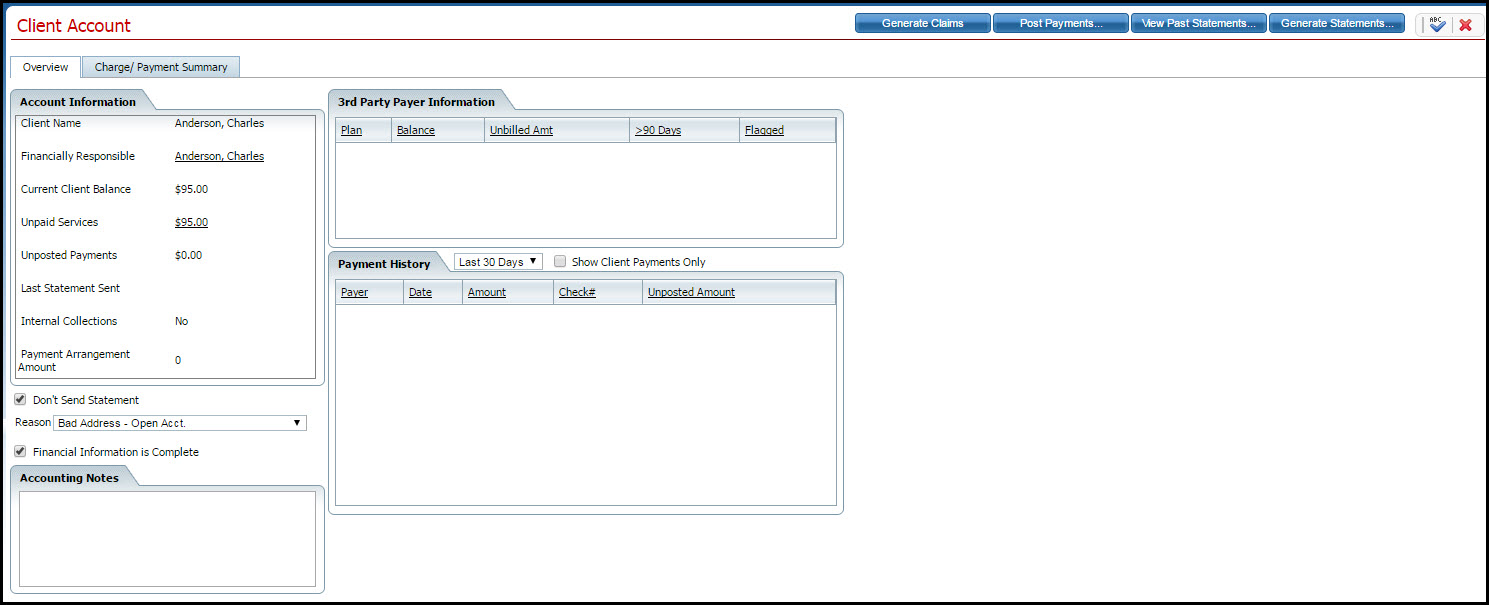
You can post a payment(s) on an individual client's account from the Client Account page.
Display the Client Account page. Tell me how...
The Client Account page with the Overview tab active is displayed. View field definitions.
Click the Post Payments button in the toolbar.
The Payment/Adjustment Posting window is displayed. View field definitions.
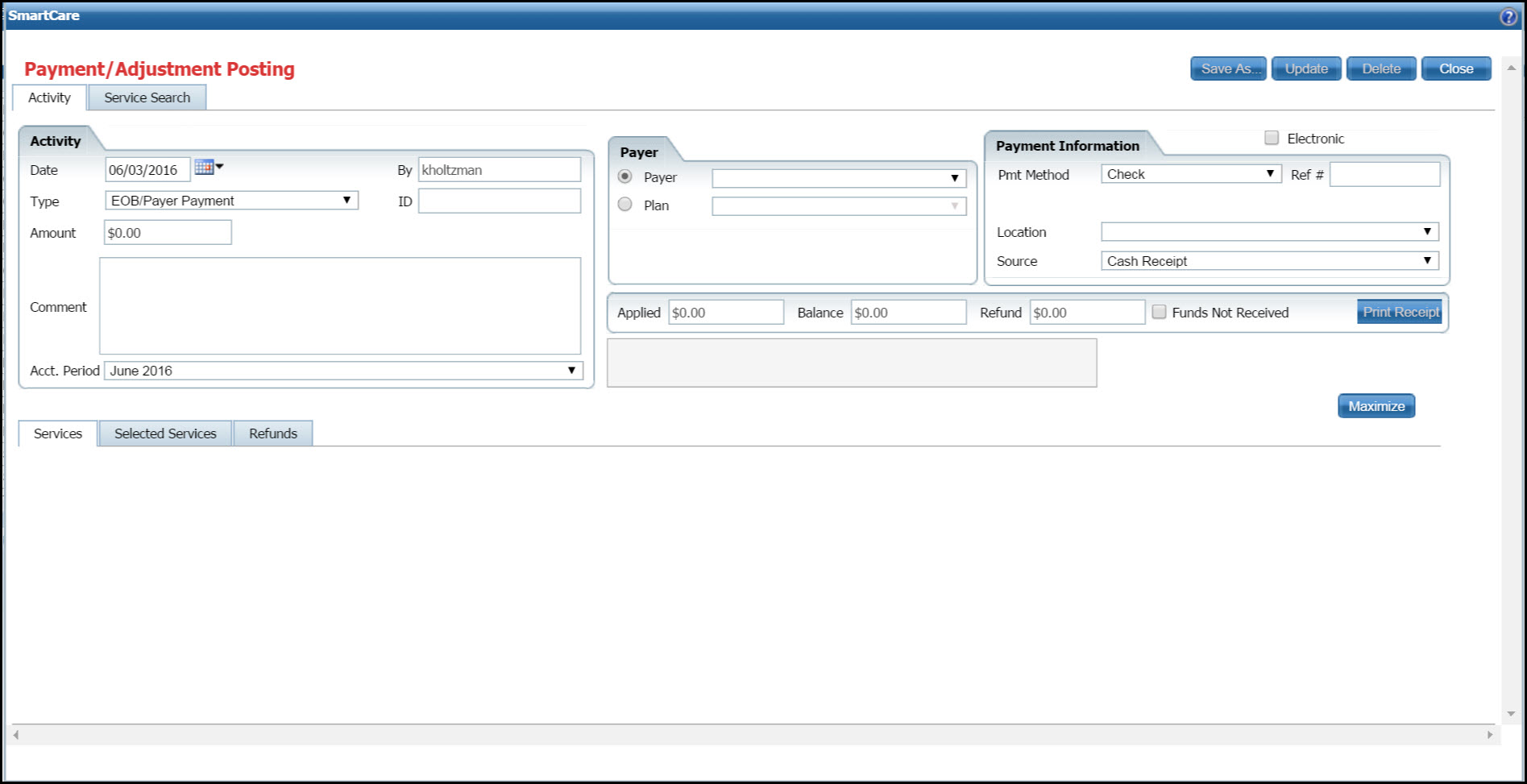
Enter the payment information on the Activity tab.
Click the Update button.
Click the Service Search tab.
The Service Search tab is displayed. View field definitions.
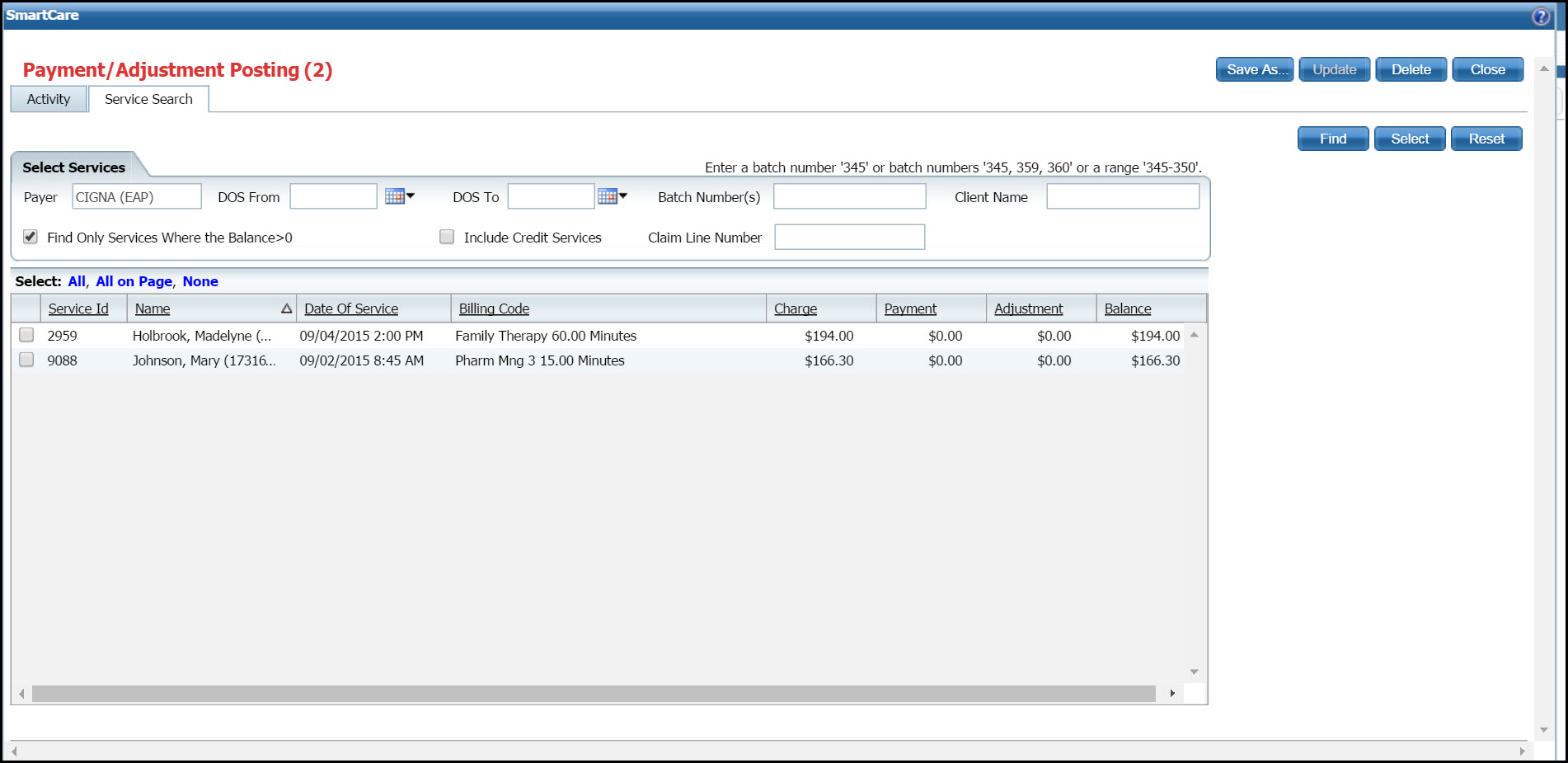
Filter the list to determine the records that are displayed. Tell me how...
Click the Find button.
The client service lines that fit the search criteria are displayed.
Select the check box next to each client service line that you want to pay.
Click the Select button.
The client service line information is displayed in the Selected Services sub-tab on the Payment/Adjustment Posting page. Refer to the red outline in the figure below. View field definitions.
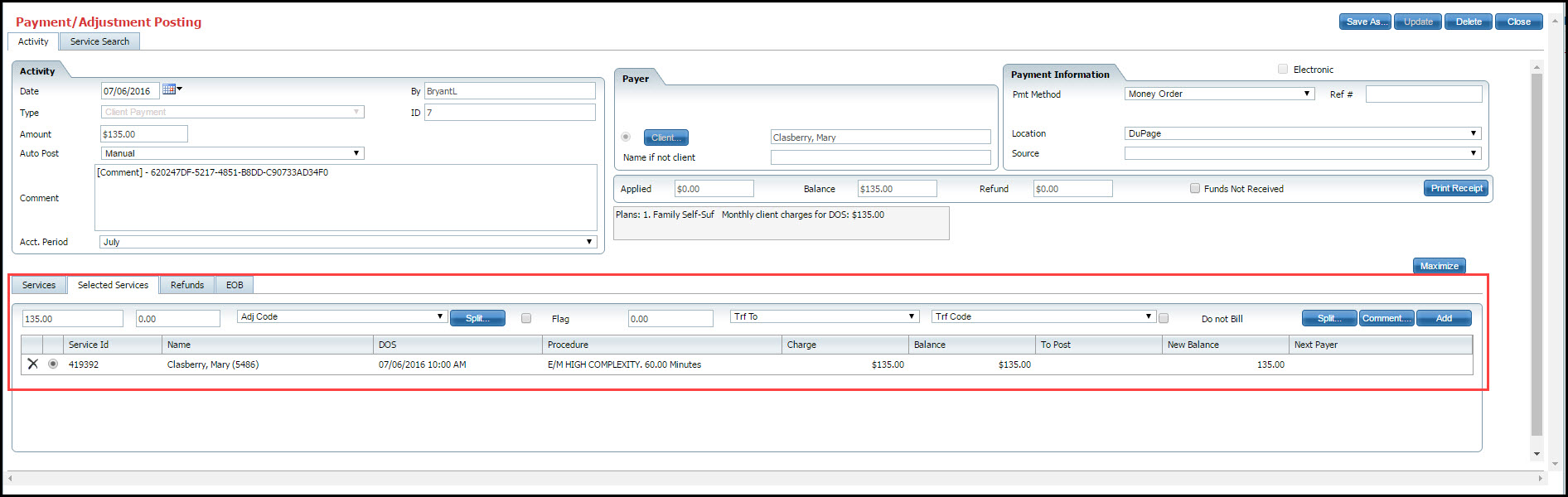
Notice that the first record listed is selected. If you want to pay a different client record, select the check box next to the record you want to pay, adjust or transfer.
Apply the payment using the fields displayed just above the list of client records. Refer to the red box in the figure below.
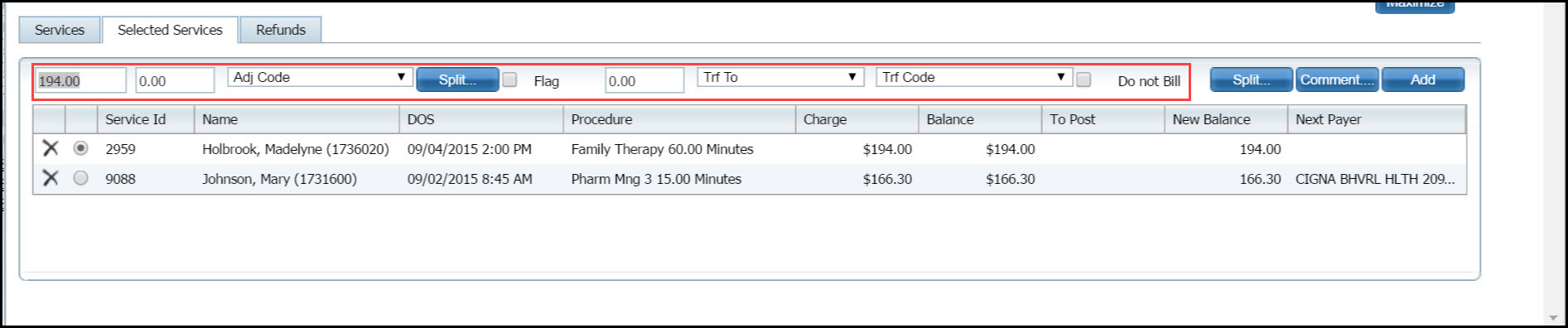
The payment amount is the first field on the left. Notice that the total charge amount is displayed in the field for the client record that is selected in the list panel below.
To pay a different amount, type the payment amount in the field.
To apply a single adjustment, type the dollar amount of the adjustment in the second field, just to the right of the payment amount. Select an adjustment code that describes the adjustment from the drop down.
To apply multiple adjustments with different adjustment codes, click the Split button. Tell me how... See the red box in the figure below.

To transfer an amount to a single payer, select the payer to transfer the amount to from the Trf To drop down. Use this step if the client has more than one coverage plan to bill a secondary insurance or to the client. For example, if the balance is the client's responsibility such as deductible or co-pay.
To transfer the balance due to several payers, click the Split button (next to the Comment button). Tell me how... Refer to the red box in the figure below.

To enter a comment on the payment or adjustment, click the Comment button. Tell me how... Notice the red box in the figure below.

When you have entered all the information for the service line, click the Add button. The information is saved and the next service line is selected.
When you have entered the entire payment amount or you want to leave the page before you are finished, click the Update button at the top of the page.
The information on all the fields you entered is saved in the system and the service line(s) is displayed on the Services tab.
The Confirmation Message window is displayed.
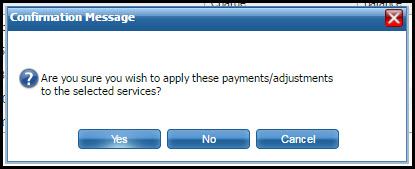
Click the Yes button in the Confirmation Message window.
To exit from the Payment/Adjustment Posting window, click the Close button.
The Payments/Adjustments (####) list page is displayed.