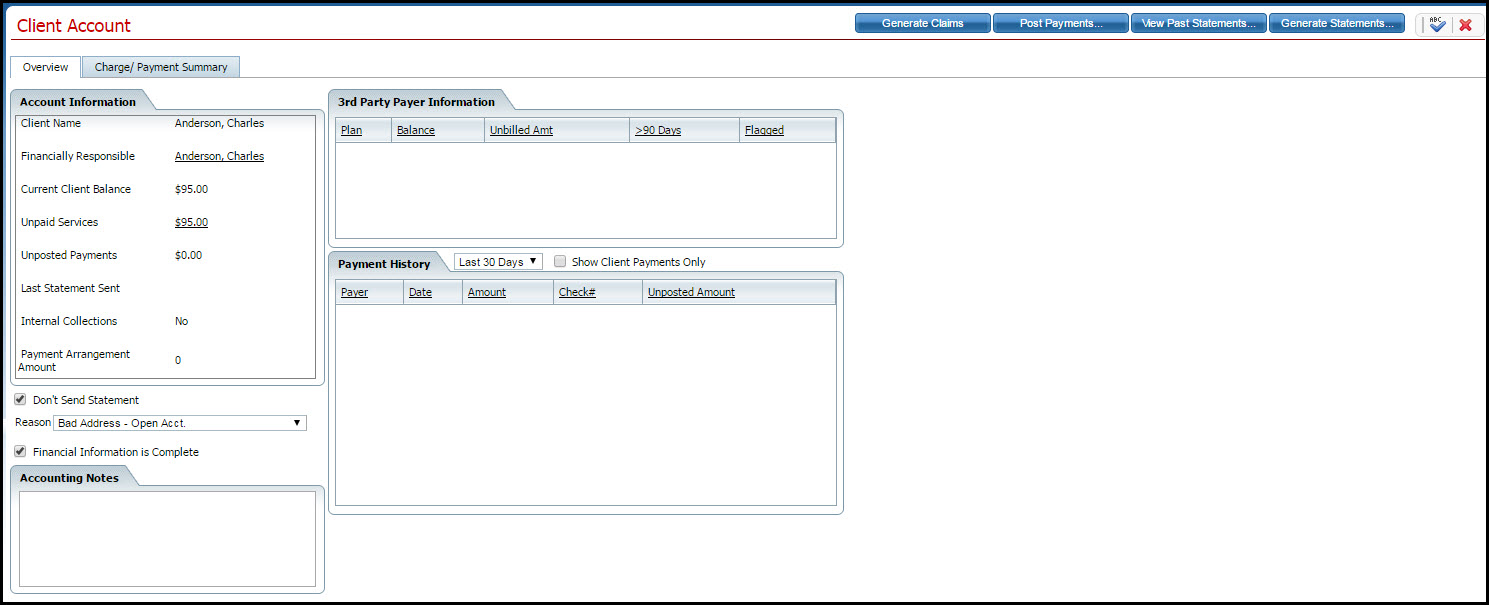
Display the Client Account page. Tell me how...
The Client Account page is displayed with the Overview tab active. View field definitions.
Click the Generate Claims
 button in the toolbar.
The Charges/Claims list page is displayed with the client's charges shown that are ready to bill.

Select the charges that you want to generate claims for by checking the check box to the left of the Charge Id.
Based on the Plan Name listed in the Plan Name column, either create an E-claim or a Paper claim.
To create an electronic 837 claim file, click the E-Claim button to create an electronic 837 claim file to submit electronically to the payer. Continue with the next task, To Create an E-Claim.
-or-
To create paper claims, click the Paper button to create paper forms to send to the payer. Continue with the next task, To Create Paper Claims.
When you click the E-Claim button in step 5 above, the Claims Processing window is displayed.
The Claims Processing window is displayed. View field definitions.
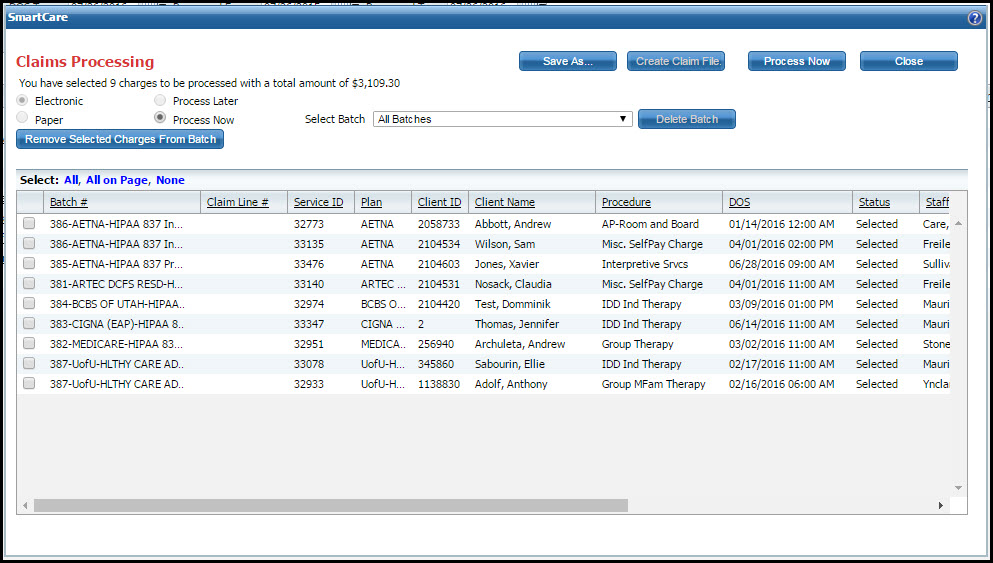
The service lines that are ready to be included in a claim file to the plan are listed.
All charges listed on the page will be included in the claims you create. You do not need to select the radio buttons to include a service line in a claim.
To remove charges from the list, click the check box to the left of each charge line you want to delete from a batch. Tell me how...
Make sure the Process Now radio button is selected.
When you are ready to create the claims, click the Process Now button.
All claims listed on the page are processed into claims, unless there is a problem with the charge line, in which case the charge line is excluded from the claim.
When the process is complete, a status message appears in the top left corner of the window. Refer to the red box in the figure below.
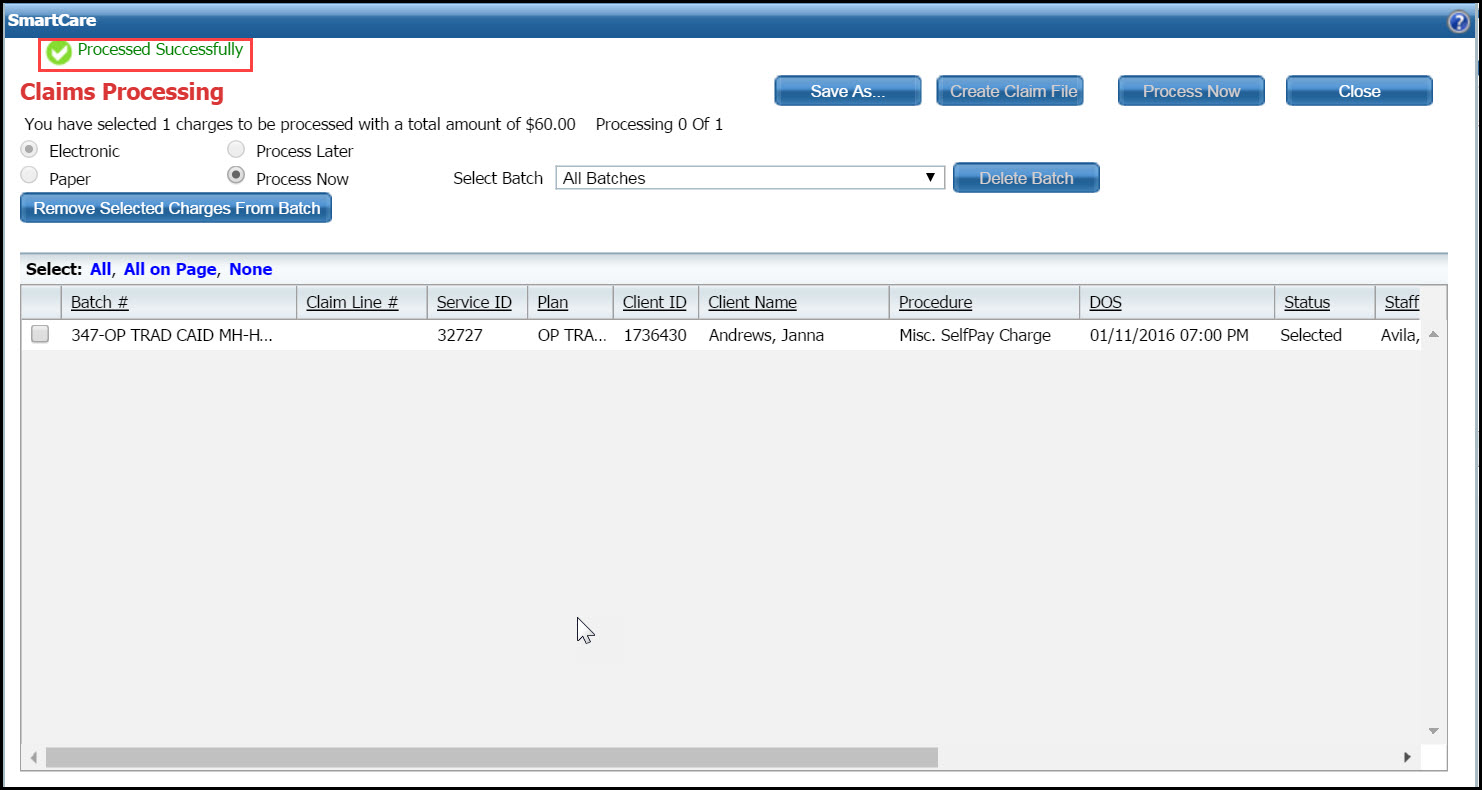
Verify that the Create Claim File button is activated and not grayed out.
If the button is grayed out, scroll to the right on the lower panel in the window to find the Warnings/Errors column. Any text in this column indicates that there was a problem processing the charge into a claim.
If there is a warning or error message, troubleshoot the problem and fix it so you can reprocess the charge to create a claim. If you do not fix the warning or error problem, the charge will not be included on a claim to the payer.
-or-
If the button is active, click the Create Claim File button.
The Claim File Creation window is displayed.
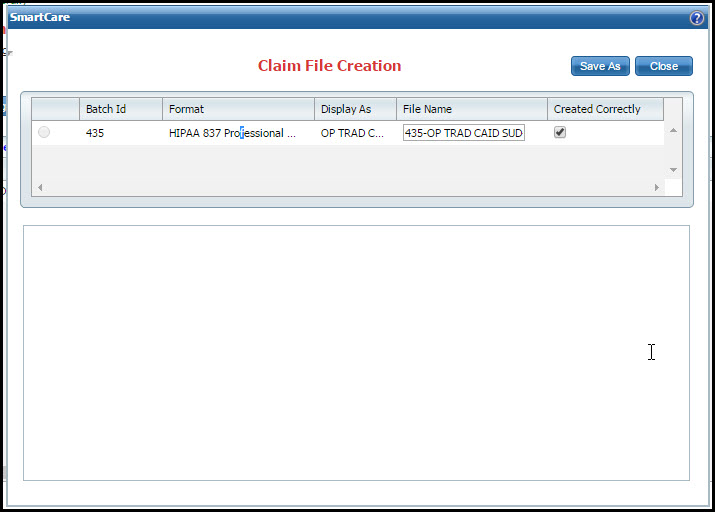
Notice the Created Correctly check box is selected indicating that the claim was created. If the check box is not selected, the claim was not created.
If you want to save a copy of the claim file, click the Save As button to save a copy of the file.
The text of the file is displayed in the lower half of the window and a copy of the file appears in the task bar of your browser window.
Click the Close button to close the window.
When you click the Paper button in step 5 of the previous task, the Claims Processing window is displayed.
The Claims Processing window is displayed. View field definitions.
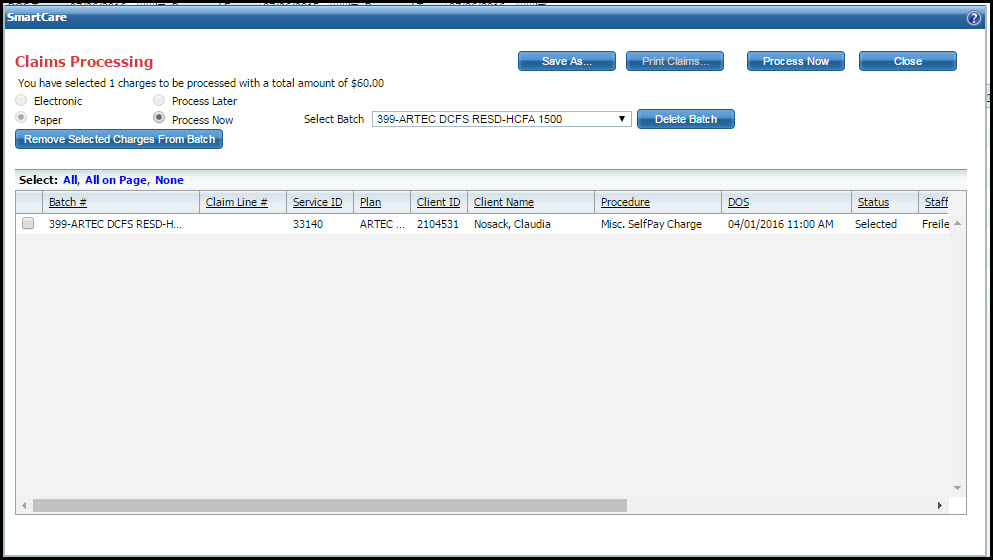
The service lines that are ready to be included in a claim file for the plan are listed.
All charges listed on the page will be included in the claims you create. You do not need to select the radio buttons to include a service line in a claim.
To remove charges from the list, click the check box to the left of each charge line you want to delete from a batch. Tell me how...
Make sure the Process Now radio button is selected.
When you are ready to create the claims, click the Process Now button.
All claims listed on the page are processed into claims, unless there is a problem with the service line, in which case the service line is excluded from the claim.
When the process is complete, a status message appears in the top left corner of the window.
If the process was successful, the Print Claims button is active.
Click the Print Claims button to print the claims to your printer.
Retrieve the claims from the printer and mail to the payer or plan for processing.