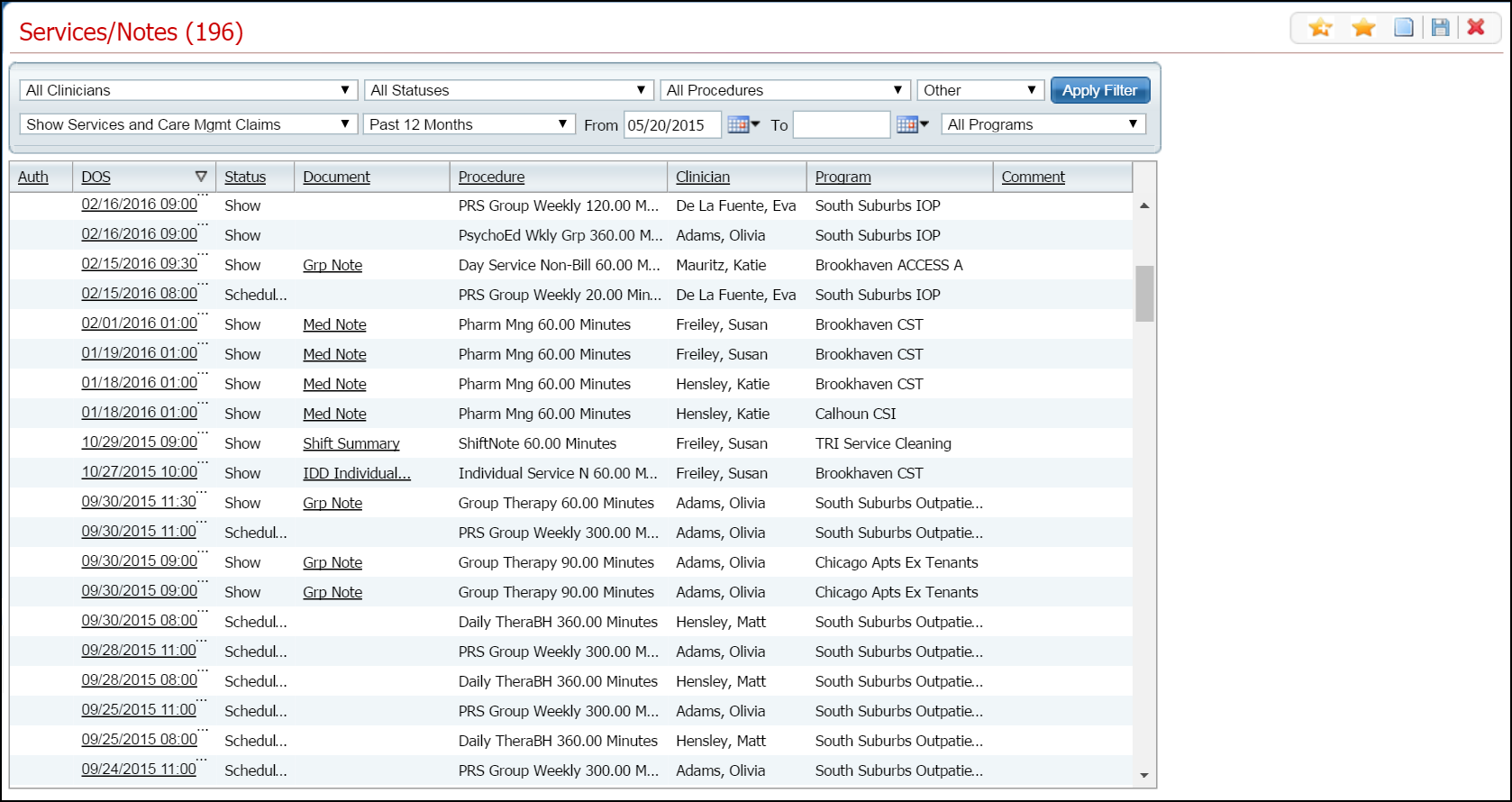
Display the Services/Notes (###) list page. Tell me how...
The Services/Notes (###) list page is displayed. View field definitions.
Click on the hyperlinked date of service in the DOS column that you want to reschedule.
The Service Note page is displayed. Note: the name of the page depends on the document assigned to the service you selected. View field definitions.
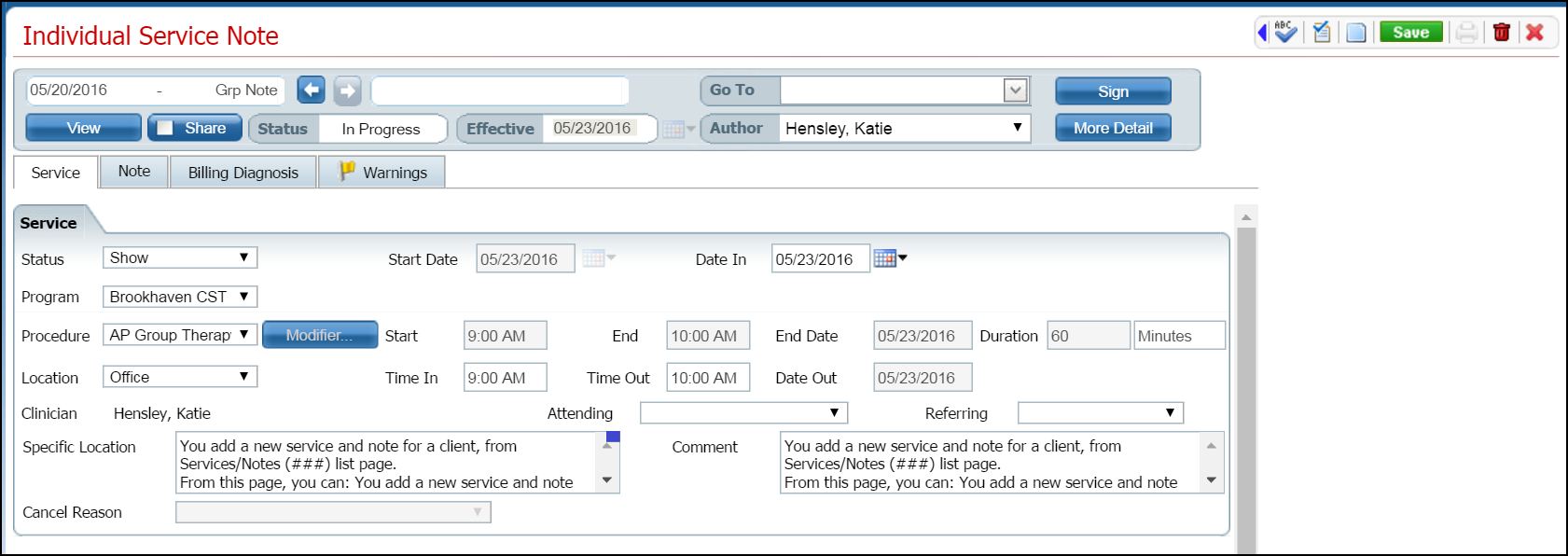
Extend the task bar by clicking the left pointing blue arrow. Notice the red box outlining the arrow in the screen image below.

The task bar extends to the left.

Click the Schedule Follow-Up icon in the extended task bar. Notice the red outlined icon in the screen image above.
The My Calendar page is displayed. The calendar for the staff member who was assigned to the service where you clicked on the a Schedule Follow-Up icon is displayed. View field definitions.
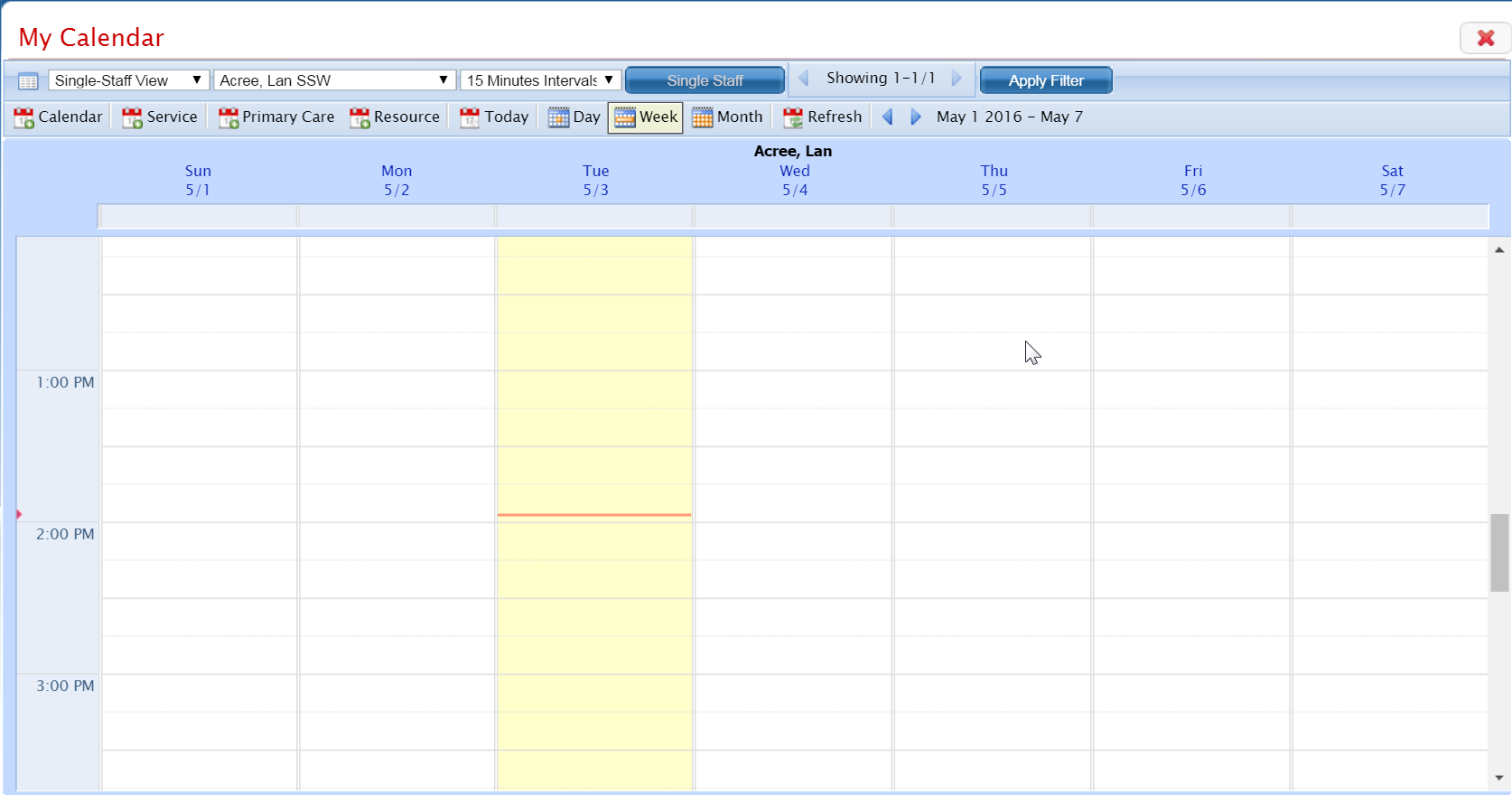
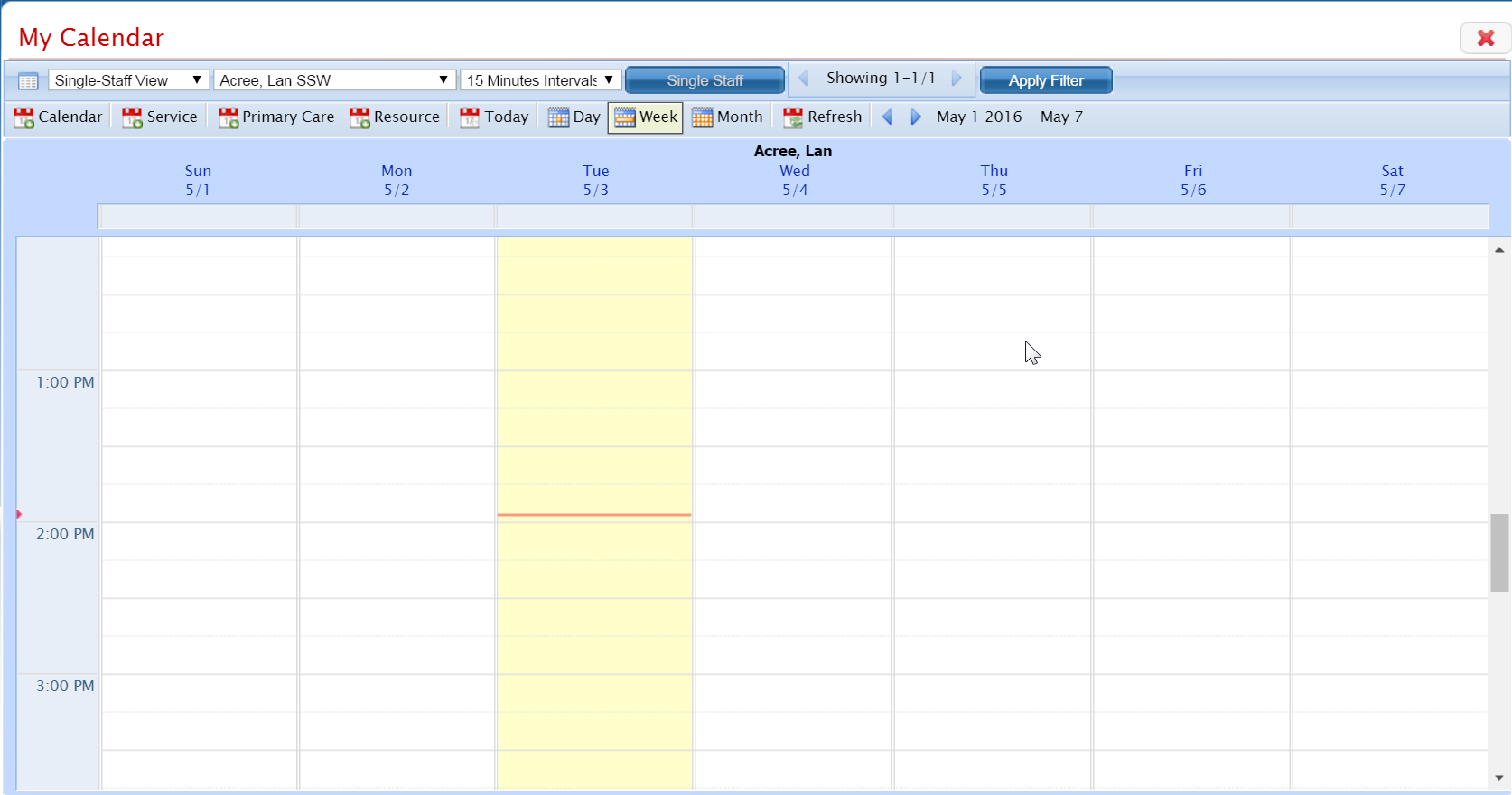
Find the date and time when you want to schedule a follow-up visit. Tell me how... View field definitions.
Change the intervals you view on the calendar, if desired. Tell me how...
Change the view of the calendar, if needed. Tell me how...
Click in the time slot on the day when you want to schedule the follow-up visit.
The New Entry Type window is displayed. View field definitions.
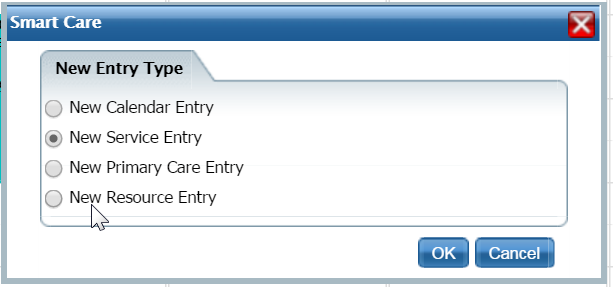
Select the New Service Entry option to schedule a follow-up visit.
Click the OK button.
The Service Note page for the follow-up visit is displayed with the date and time you selected on the calendar.
Make changes on the Service Note page, if needed. Tell me how...
When the follow-up visit is complete, click the Save button in the task bar.
The icons in the task bar are activated and you can complete other procedures for this client related to services.
Click the Exit
 icon in the task bar to return to the Services list page.