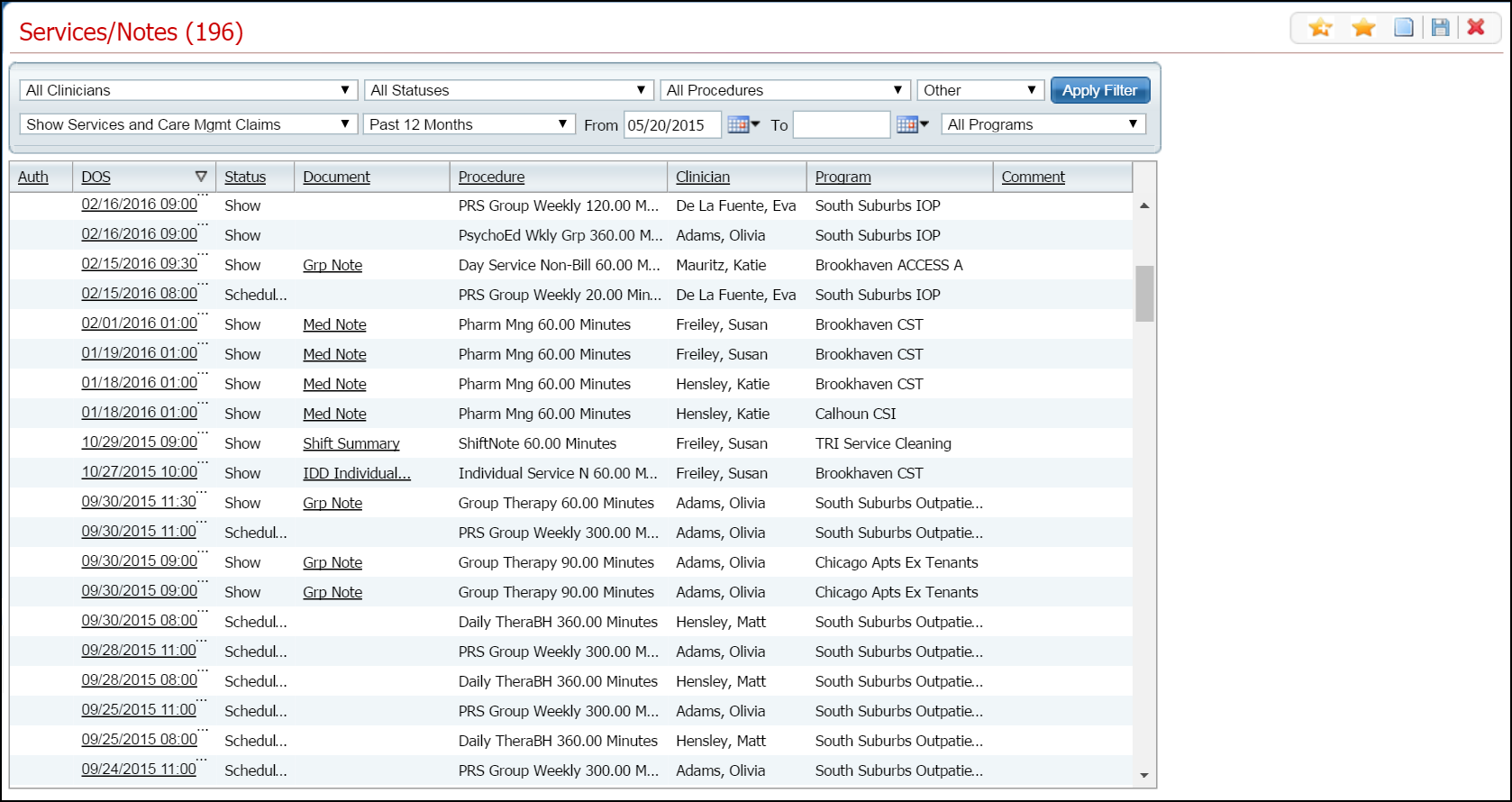
Display the Services/Notes (###) list page. Tell me how...
The Services/Notes (###) list page is displayed. View field definitions.
Click on the hyperlinked date of service in the DOS column that you want to print the clinical summary for.
The Service Note page is displayed. Note: the name of the page depends on the document assigned to the service you selected. View field definitions.
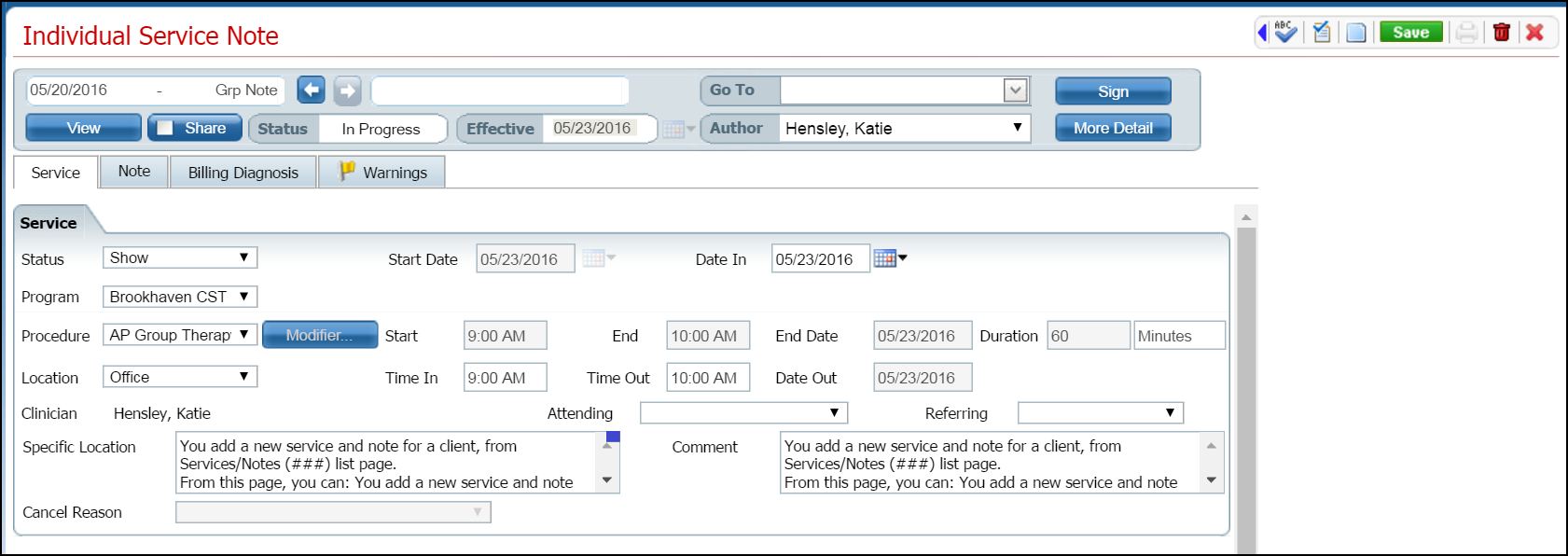
Extend the task bar by clicking the left pointing blue arrow. Notice the red box outlining the arrow in the screen image below.

The task bar extends to the left.

Click the Print Clinical Summary icon in the extended task bar. Notice the red outlined icon in the screen image above.
The Clinical Summary window is displayed. Tell me how to View the Clinical Summary Document.
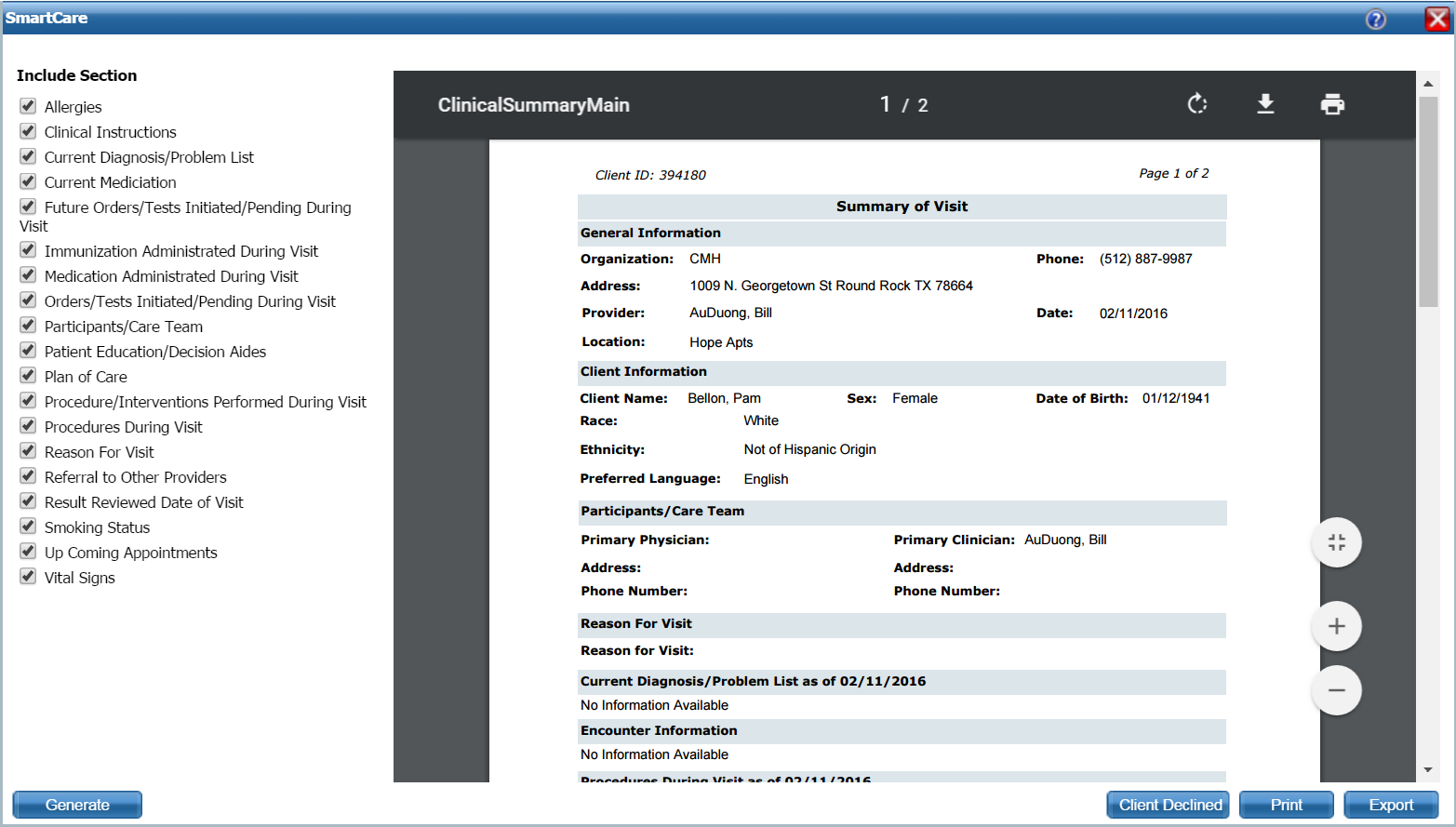
Notice in the Include Section, that all components of the clinical summary are listed and selected. If an option is selected, the information appears on the printed Summary.
To avoid including a component on the printed Clinical Summary, deselect the components you do not want included and click the Generate button to re-display the Summary with those components removed.
To print the Summary, click the print icon in the window to print the document.
If the client declines a copy of the printed Summary, click the Client Declined button.
You can export the Clinical Summary to an .xml format file. To do this, click the Export button. The exported file is displayed in the download bar at the bottom of your screen.
Click on the download document icon to open the document.
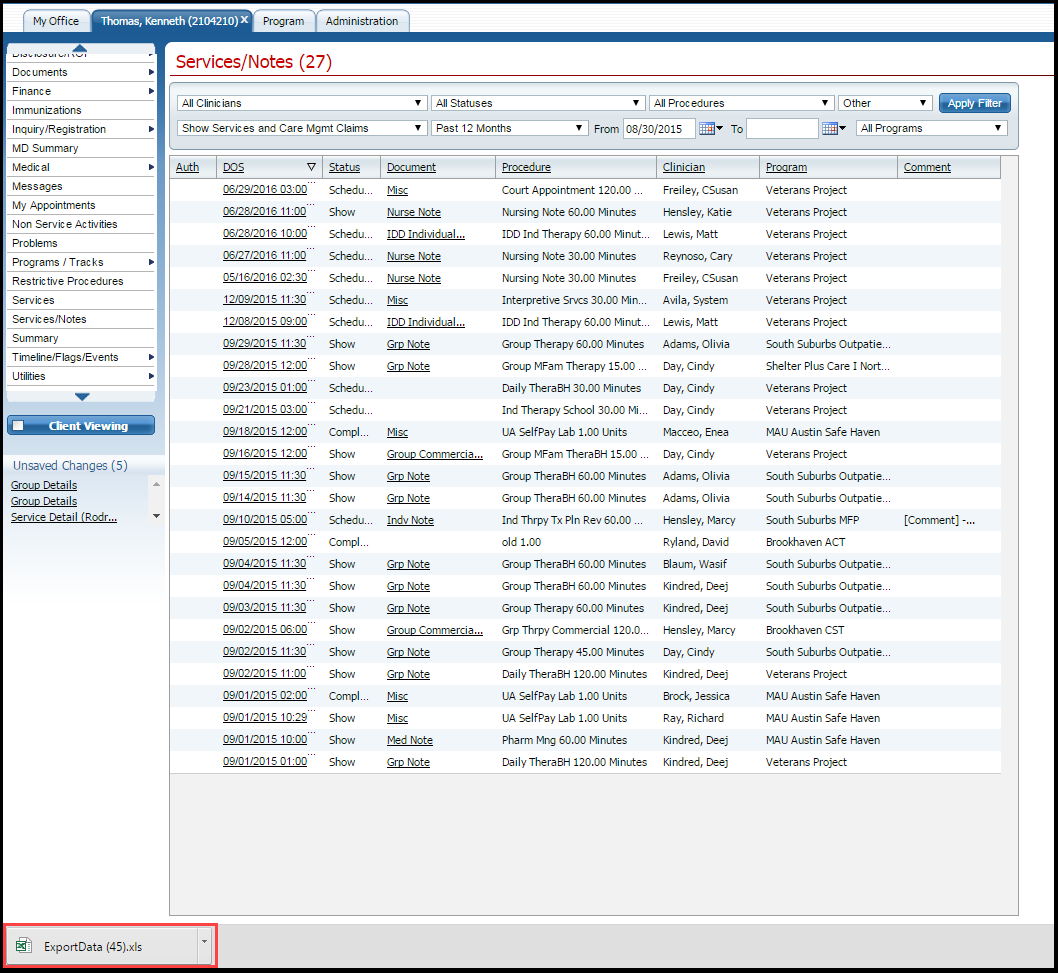
When you click on the download document icon, the Print Summary window is closed and the Service Note page is displayed.
When you are finished working with the Clinical
Summary, click the Exit
 button in the top
right corner of the window.
button in the top
right corner of the window.