 lets you view and any amendment
requests initiated by the client on service notes.
lets you view and any amendment
requests initiated by the client on service notes. This icon lets you view and any amendment
requests initiated by the client on service notes.
Display the Services/Notes (###) list page. Tell me how...
The Services/Notes (###) list page is displayed. View field definitions.
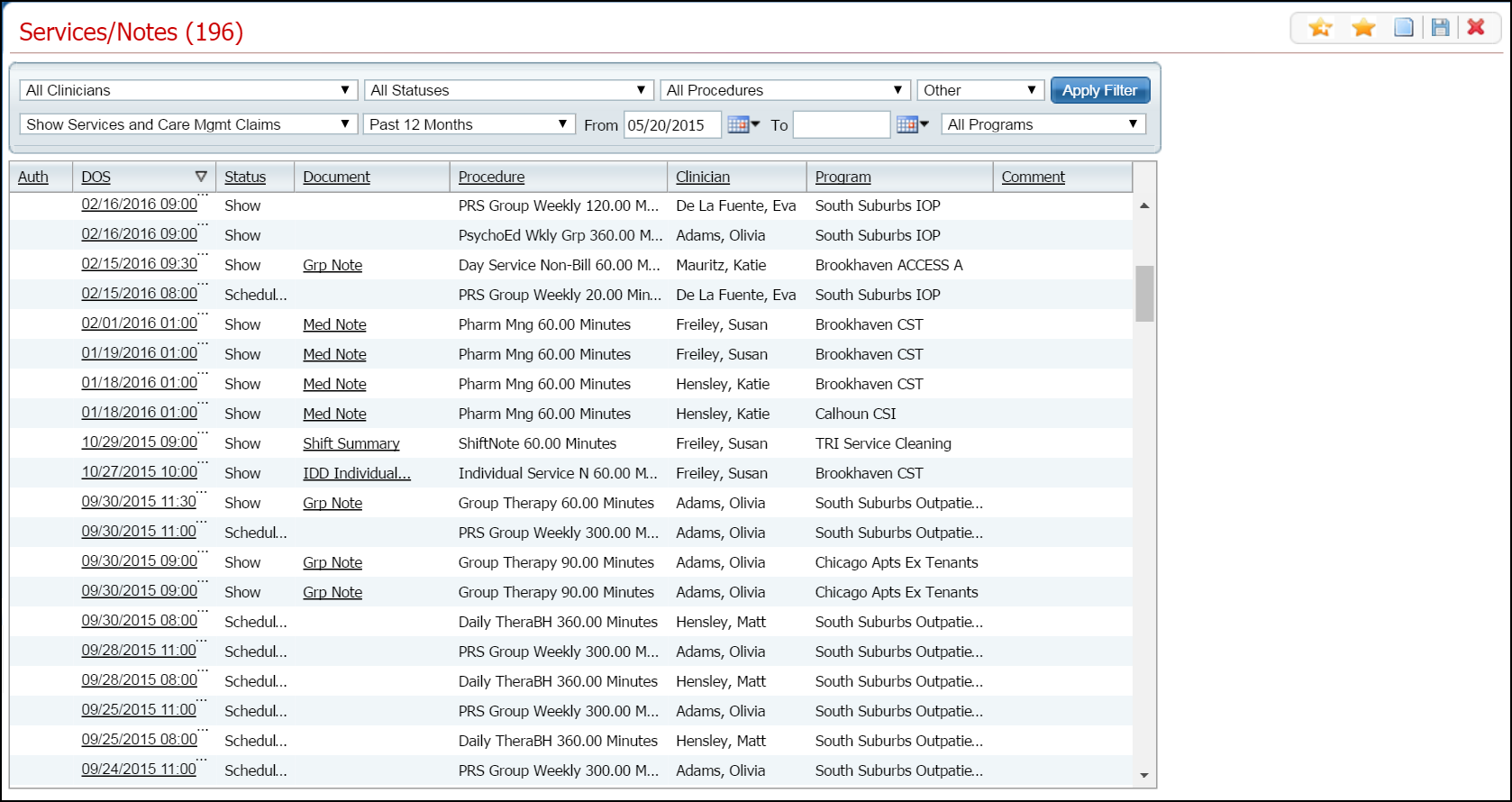
Click on the hyperlinked date of service in the DOS column that you want the print the amendment request for.
The Service Note page is displayed. Note: the name of the page depends on the document assigned to the service you selected. View field definitions.
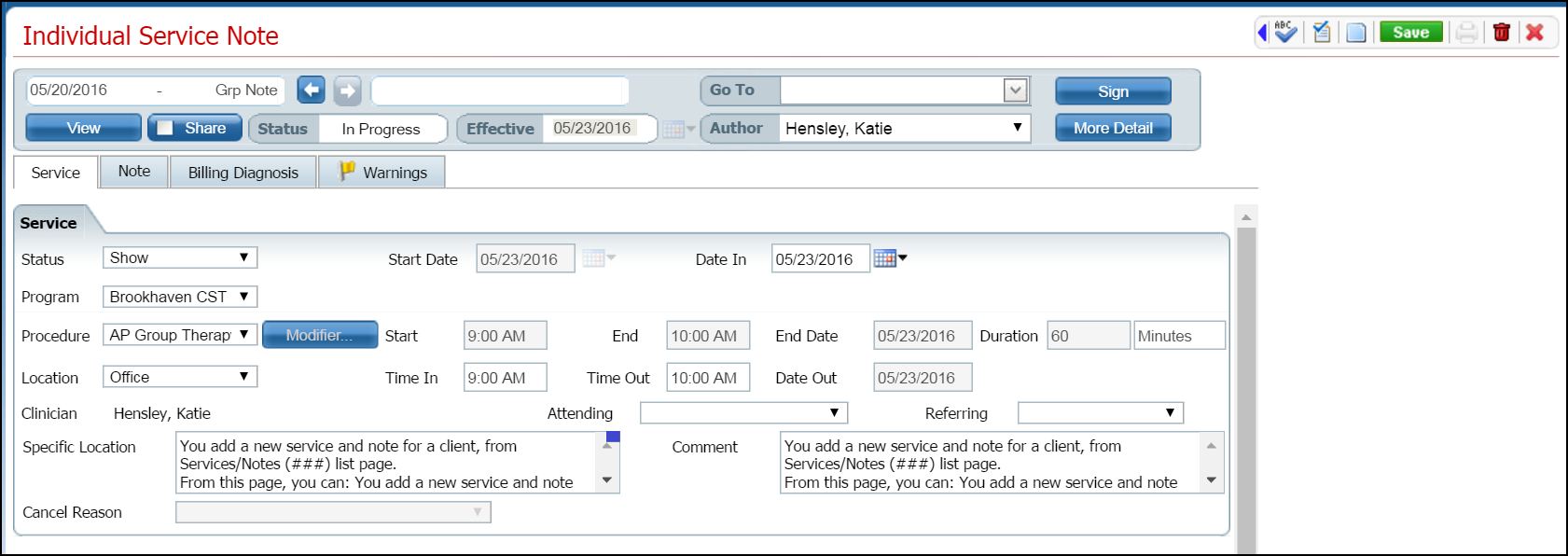
Extend the toolbar by clicking the left pointing blue arrow. Notice the red box outlining the arrow in the screen image below.

The task bar extends to the left.

Click the Print Amendment Requests icon in the extended task bar. Notice the red outlined icon in the screen image above.
The Amendment Requests window is displayed.
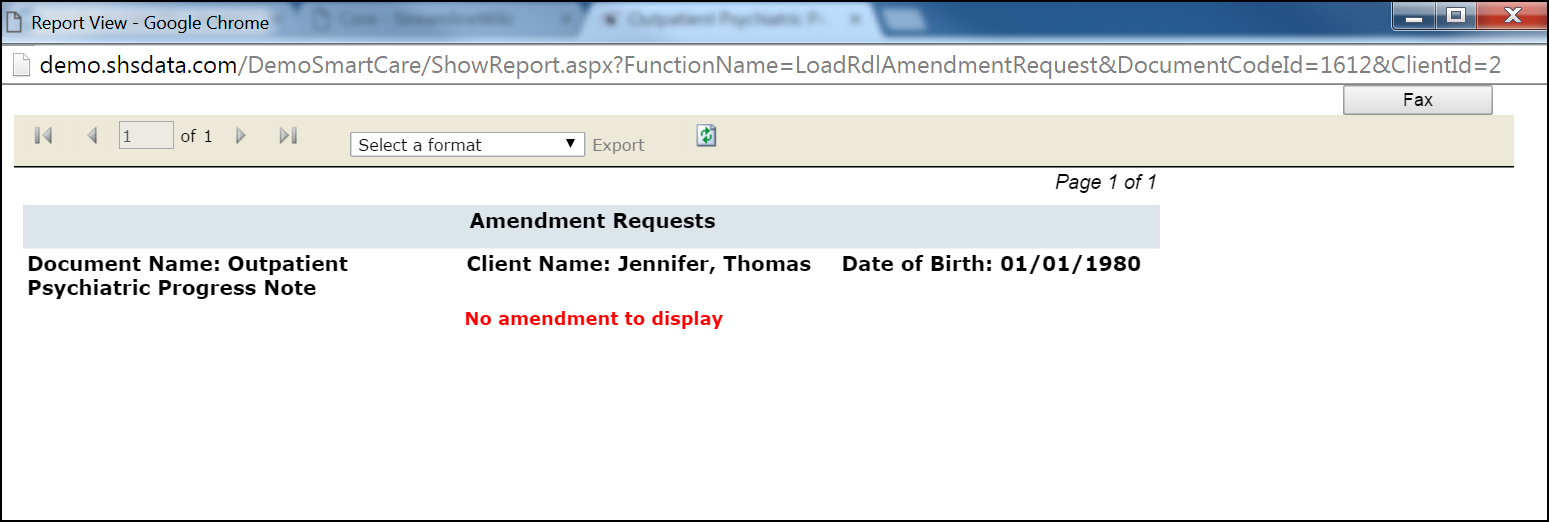
Use the Select a format drop down list to choose the format you want for the report.
Click the Export hyperlink.
The export file link button is displayed in the lower left corner of your browser screen. Refer to the red box in the image below.
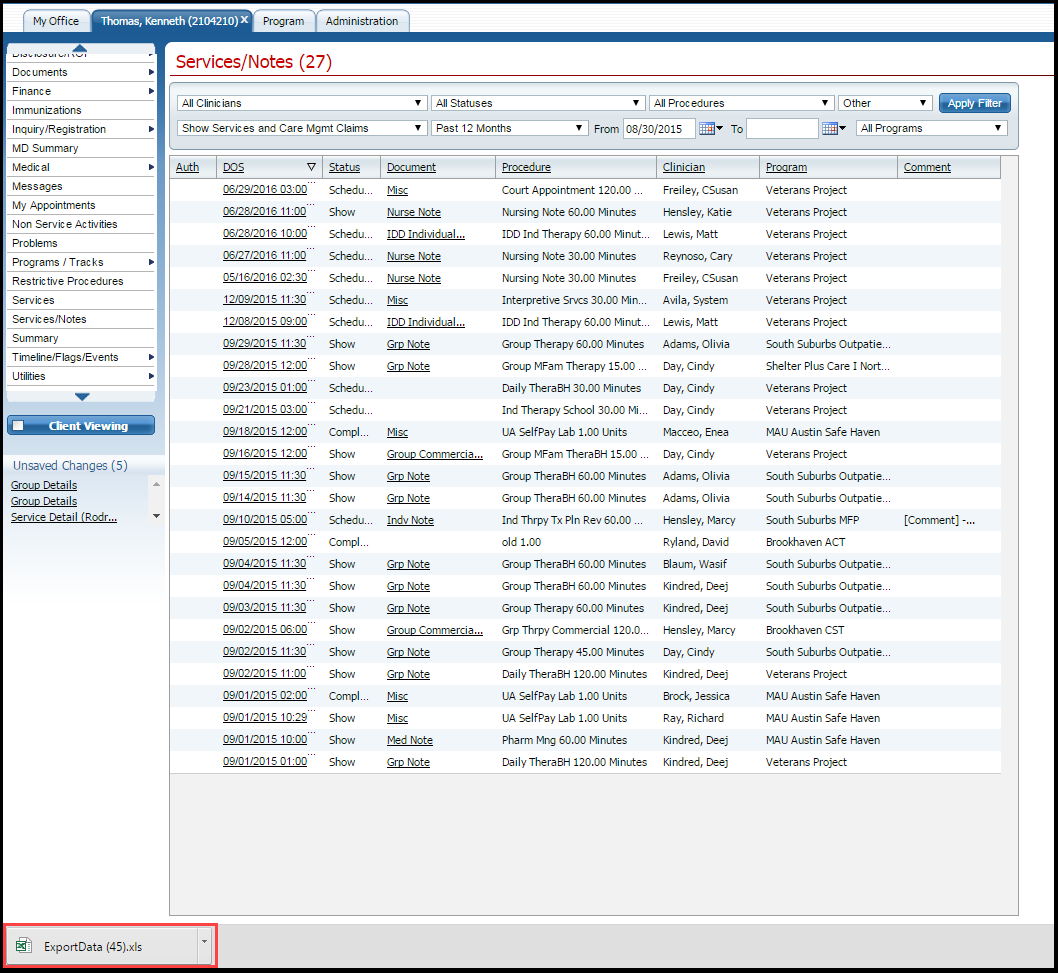
Click the Export file button in the lower left corner of your browser's task bar.
The document is opened on your computer's local drive in the software that produces the file format you selected.
Use the software page that opens in the format in the software you requested and print the document.
Use the Save As feature in the software to rename the file and put it in a different location, if you want.
When the printing is complete, the Print window is closed and the Service Note page is displayed.