You can forward a message that is listed in either the Inbox or Sent Messages tab.
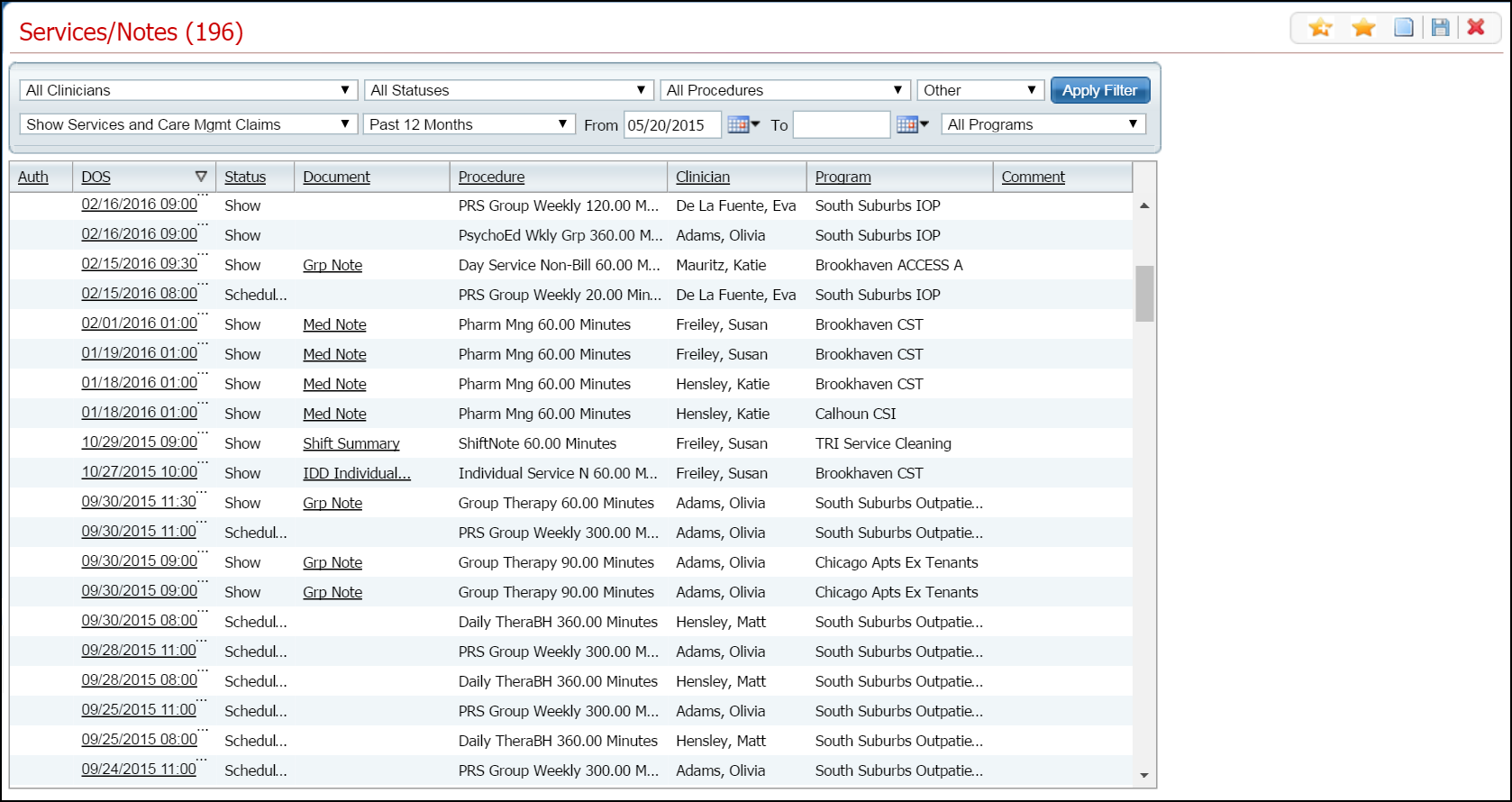
Display the Services/Notes (###) list page. Tell me how...
The Services/Notes (###) list page is displayed. View field definitions.
To send service notes for a client's service, click the hyperlinked date in the DOS column for the date of service you want.
A Note page is displayed. View field definitions.
Note: The name of the page that is displayed is different depending on the type of service and document that comprise the service. For example, if the service is Pharmacy Management service with a Medical Note document, the page that displays is called Medical Note and only the document is displayed. However, if the procedure code is Group Therapy, a Group Therapy page is displayed with fields that are similar to the Service tab shown below.
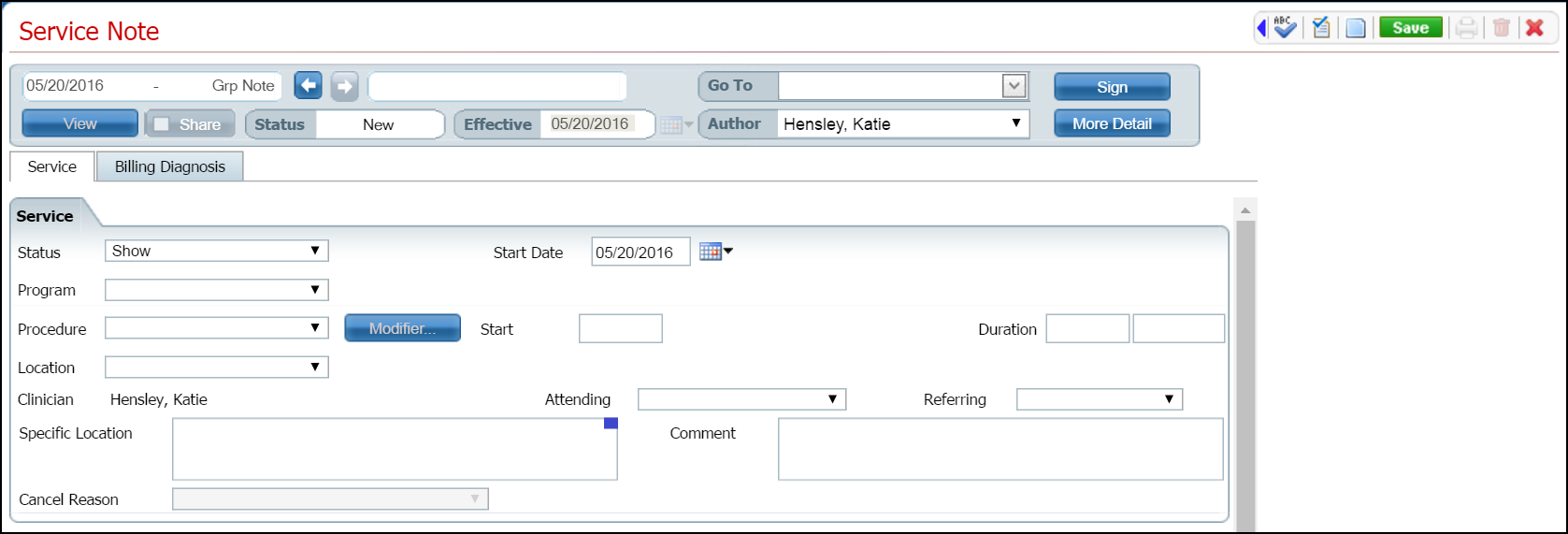
Click the left blue arrow in the task bar to view all icons on the task bar. The blue left arrow is outlined in red in the screen image below.

Notice that the Send icon is active. It is outlined in red in the screen image below.

Click the Send  icon on the extended task bar.
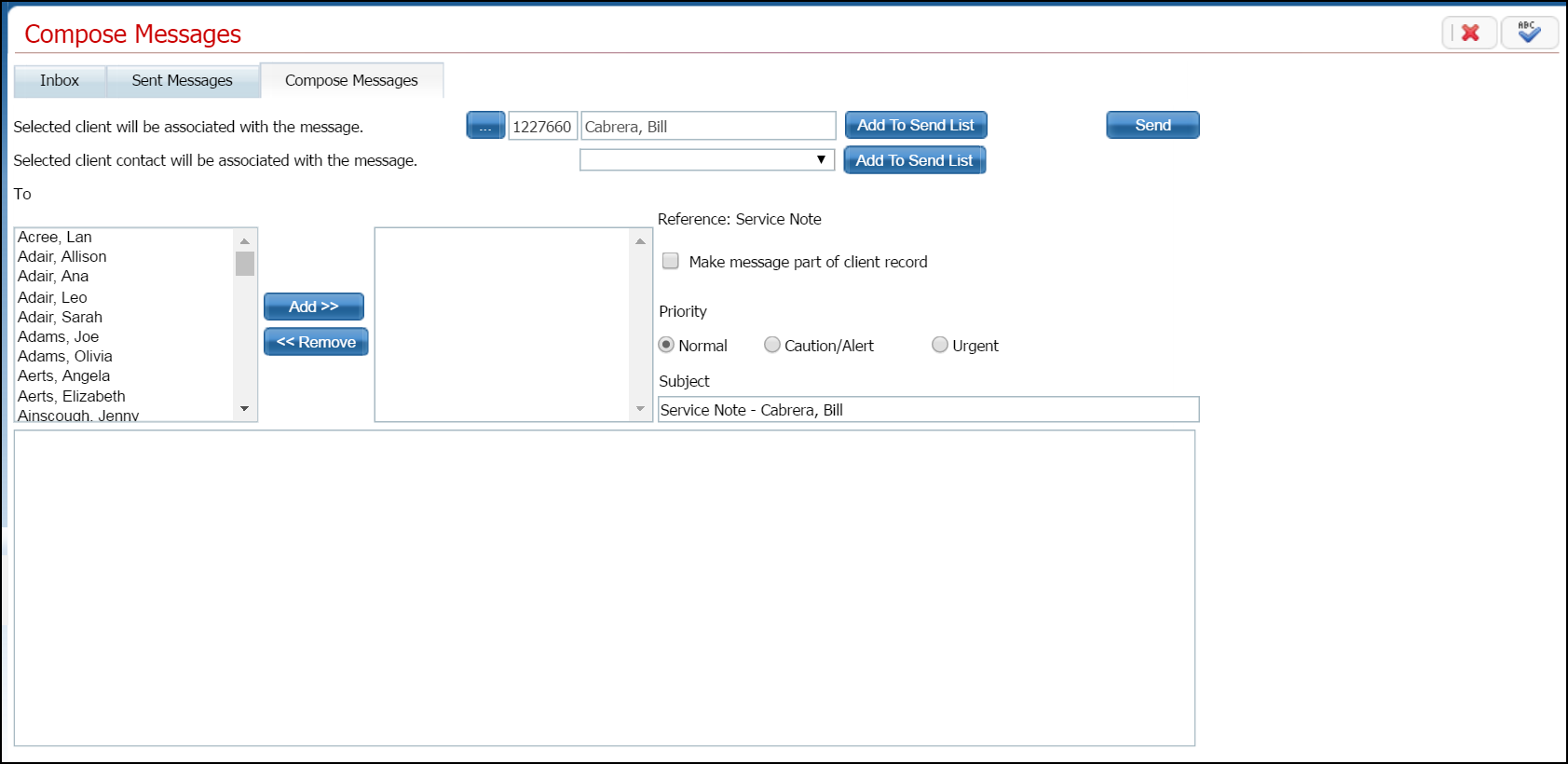
The Compose Messages page is displayed. View field definitions.
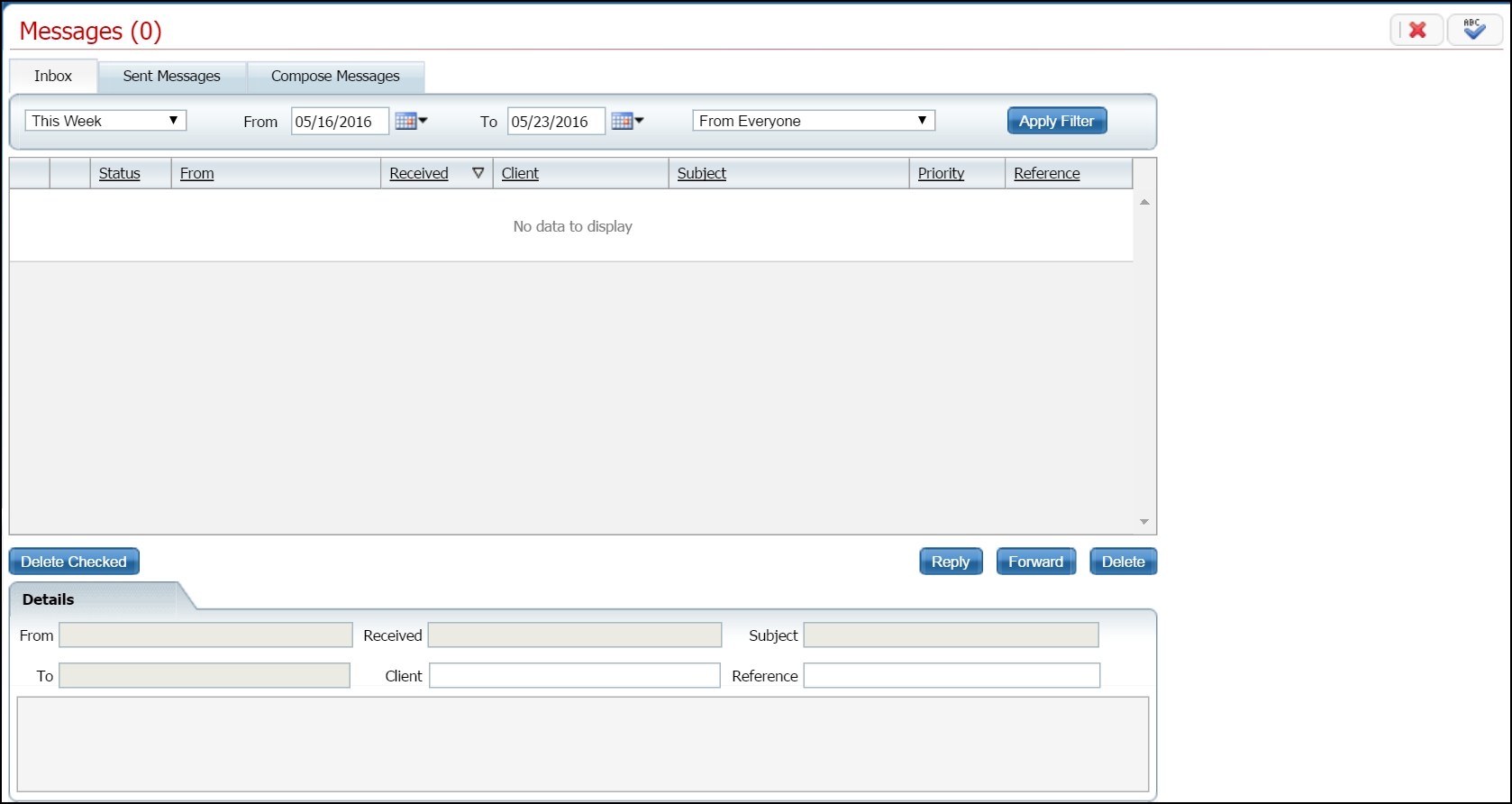
Click on either the Inbox tab or the Sent Messages tab to find the message you want to forward.
The Inbox tab is displayed. View field definitions.
-or-
The Sent Messages tab is displayed. View field definitions.
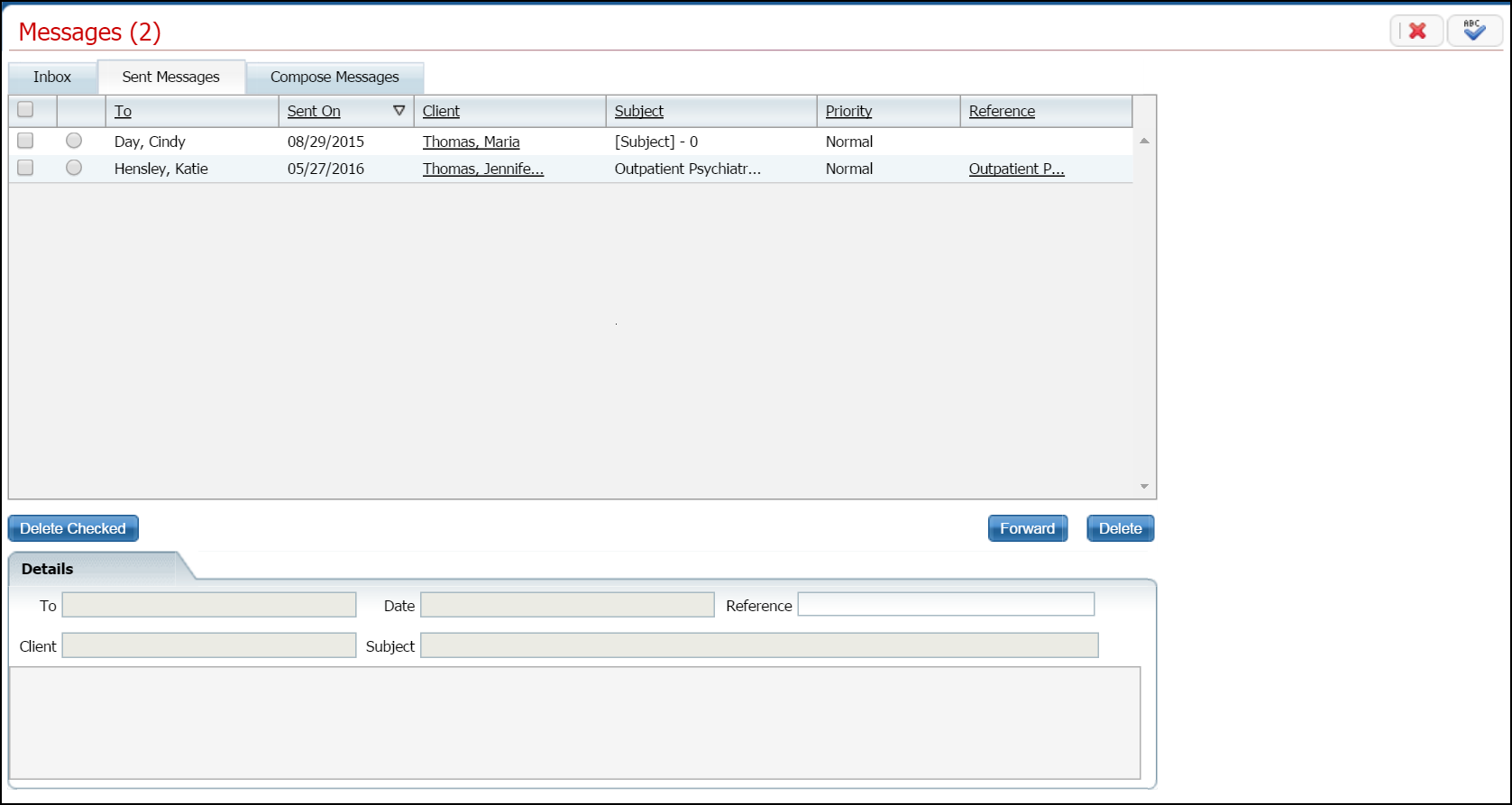
Click the radio button
 of the message you want to forward.
Click the Forward  button.
The Compose Message page is displayed with the Compose Messages tab active. The information from the message you are forwarding is displayed.
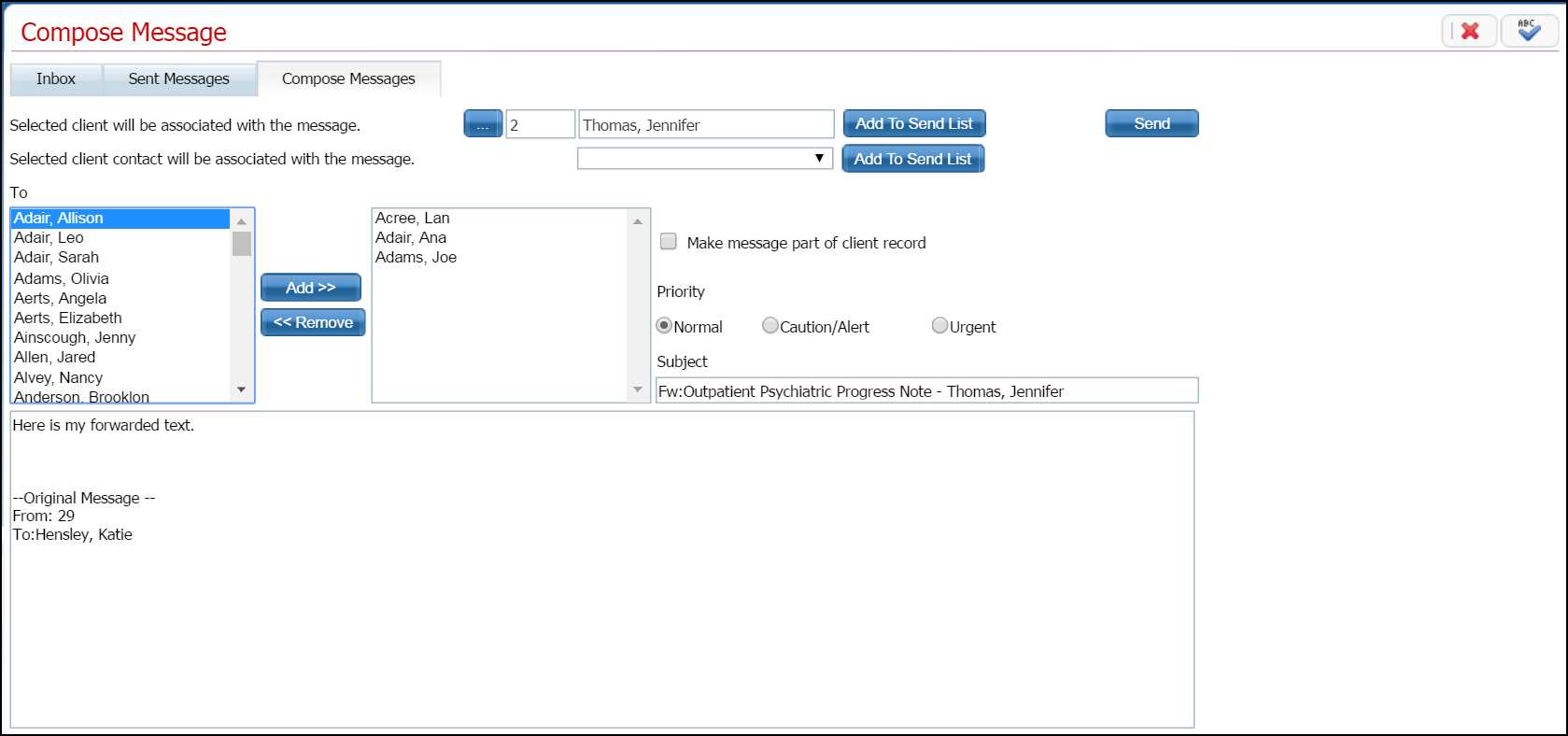
Select the people you want to forward the message to.
Make any other changes as needed.
Type text in the message text portion of the page.
Click the Send button when the message is complete.
The Compose Messages tab is cleared. The Messages page is displayed with the Inbox tab active.
Click the Exit  icon in the task to exit from the Messages
page.
icon in the task to exit from the Messages
page.