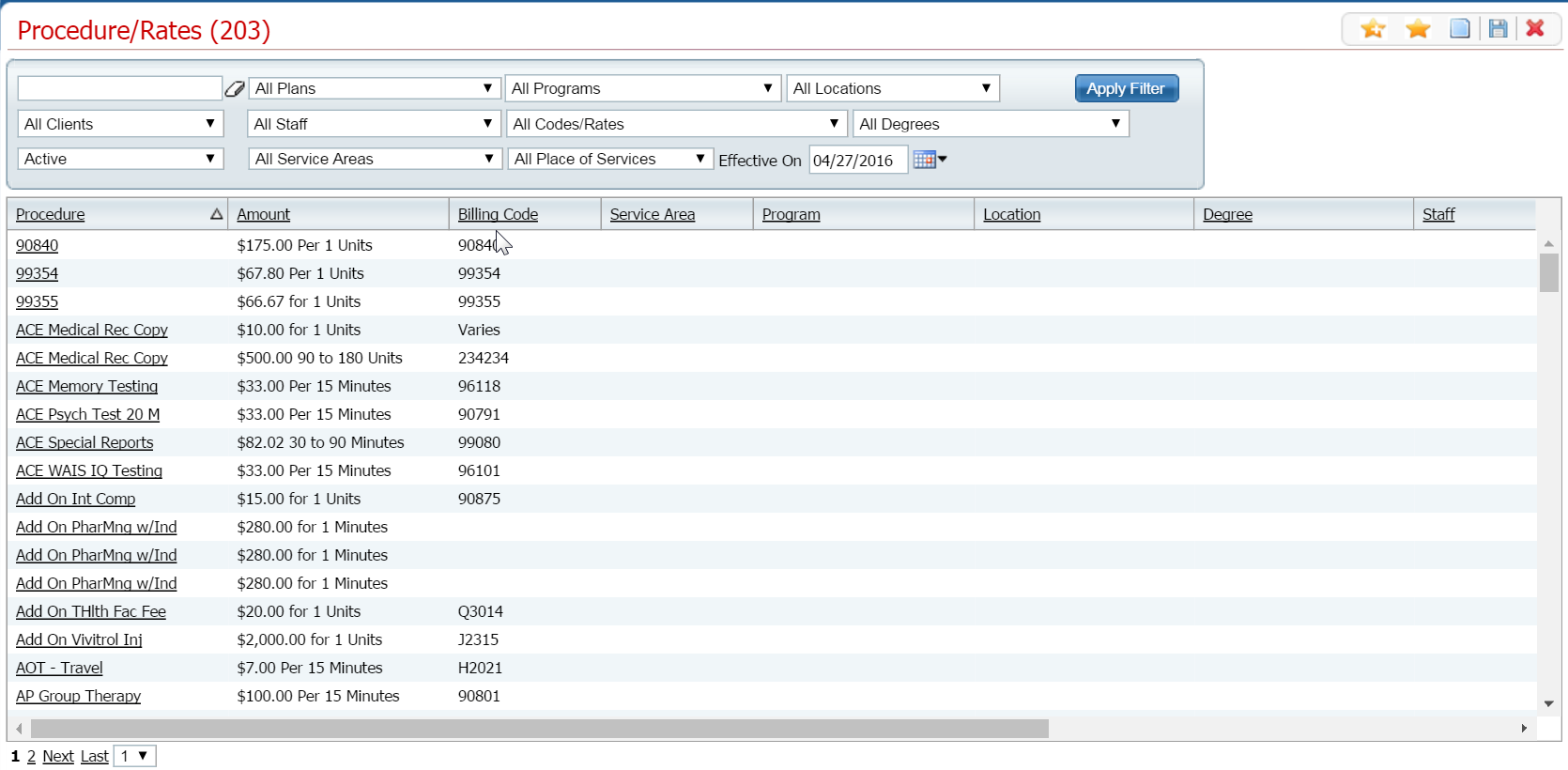
On the Procedure/Rates Details page, you add the procedure codes used in your facility and assign the rates to the codes. SmartCare uses the procedure codes and rates when you bill for services provided to a client. The procedures you set up are displayed in Service Note for the clinician to select to identify the service which was provided.
When you first set up your SmartCare system, you add all the procedures and rates that your facility uses. You can add, change or delete a procedure or rate at any time.
From the Procedure/Rates list page, you can:
Set up templates in Plans. You set up templates on the Rules tab and the Billing Codes tab.
Follow this path: Administration tab > Billing Setup banner > Procedure/Rates sub-banner.
The Procedure/Rates (###) list page is displayed. View field definitions.
Filter the list to determine the records that are displayed. Tell me how...
Click the New Page icon
 .
.
The Procedure Code Details page is displayed. View field definitions.
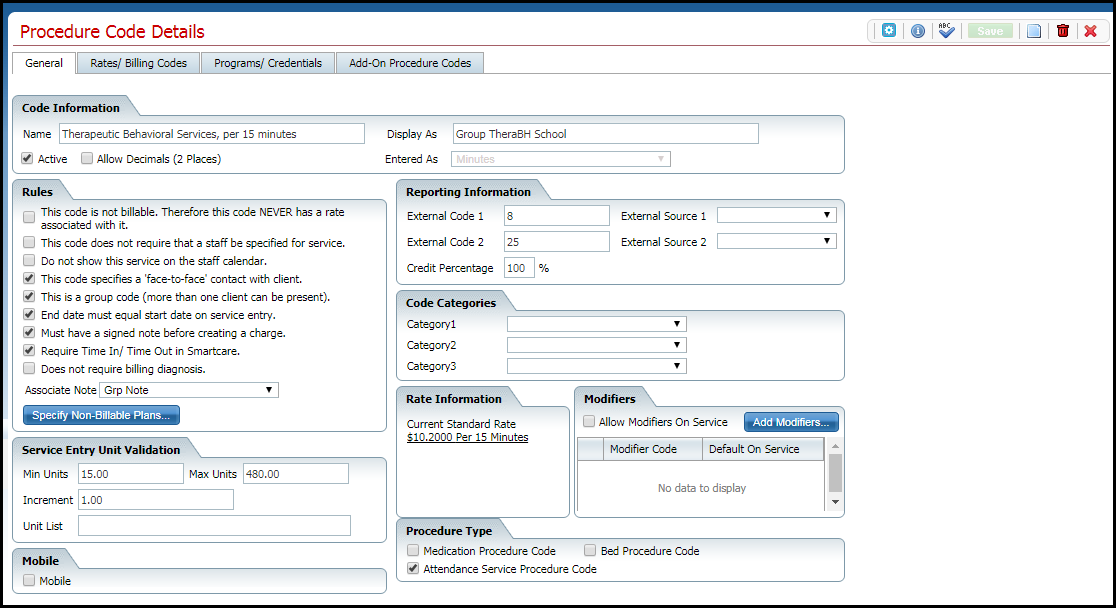
Complete the General tab.
Click the Save button to save your work.
Complete the Rates/Billing Codes tab. View field definitions.
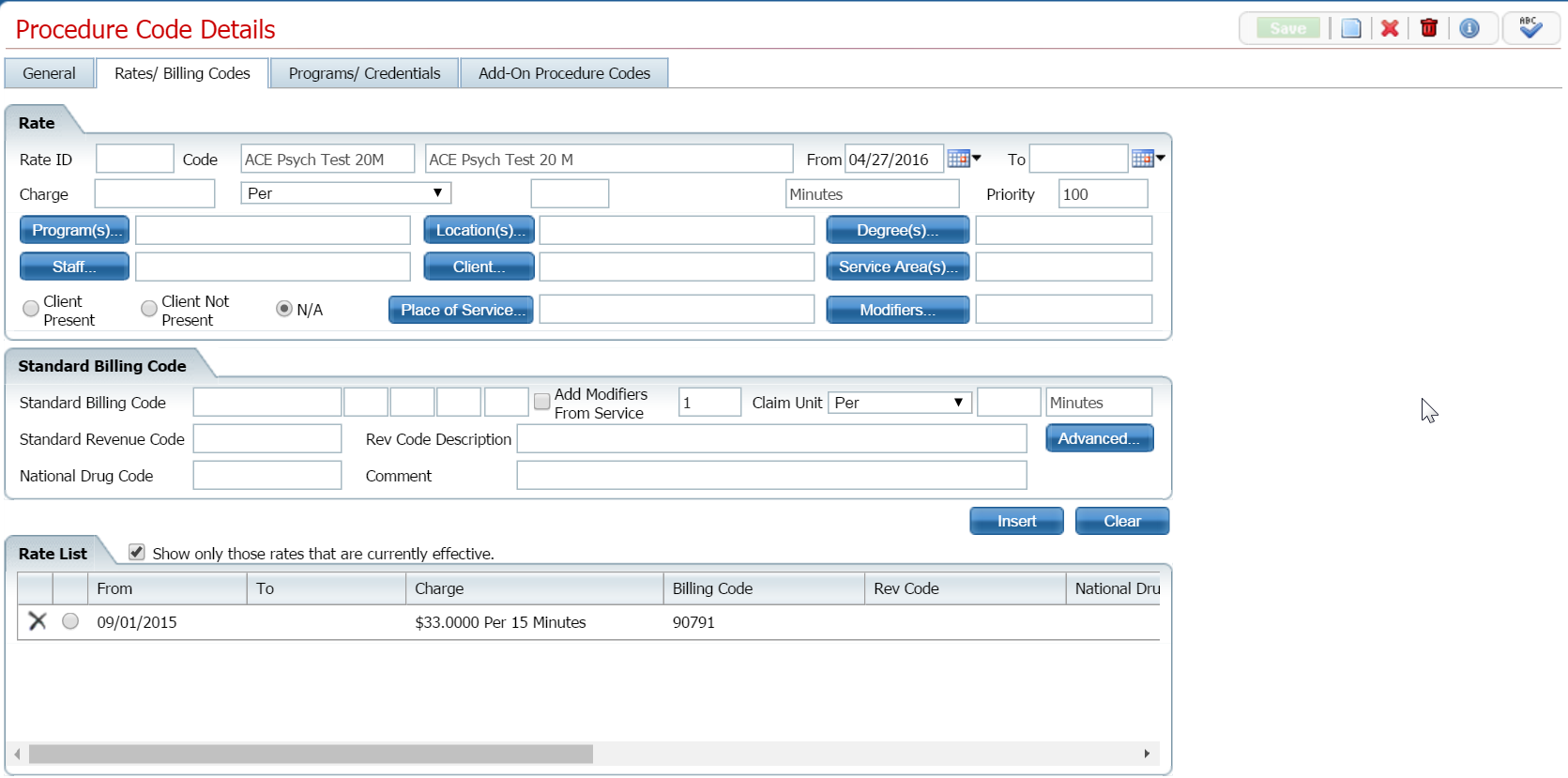
Click the Insert button to add the rates and billings codes to the Procedure and rate.
The Associate Billing Codes with Selected Plan(s) window is displayed. View field definitions.
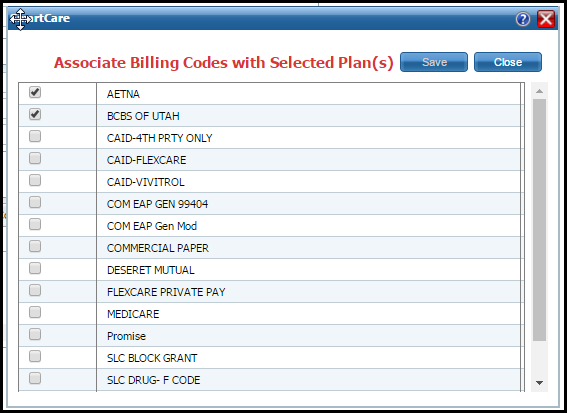
Select the plan or plans that this procedure/rate applies to.
Click the Save button.
Click the Close button.
Click the Save button to save your work.
Complete the Programs/Credentials tab. View field definitions.
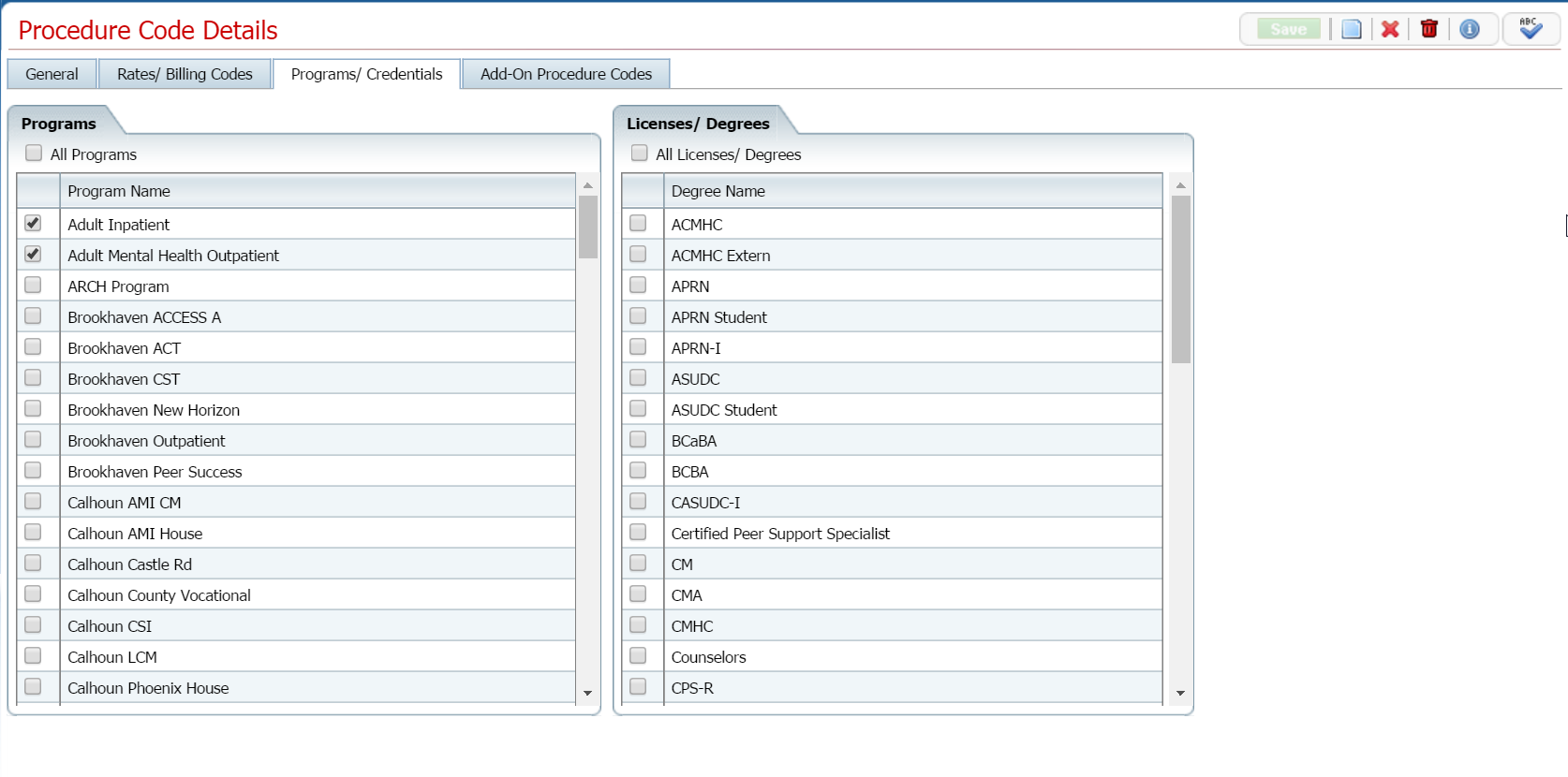
Click the Save button to save your work.
Complete the Add-On Procedure Codes tab. View field definitions.
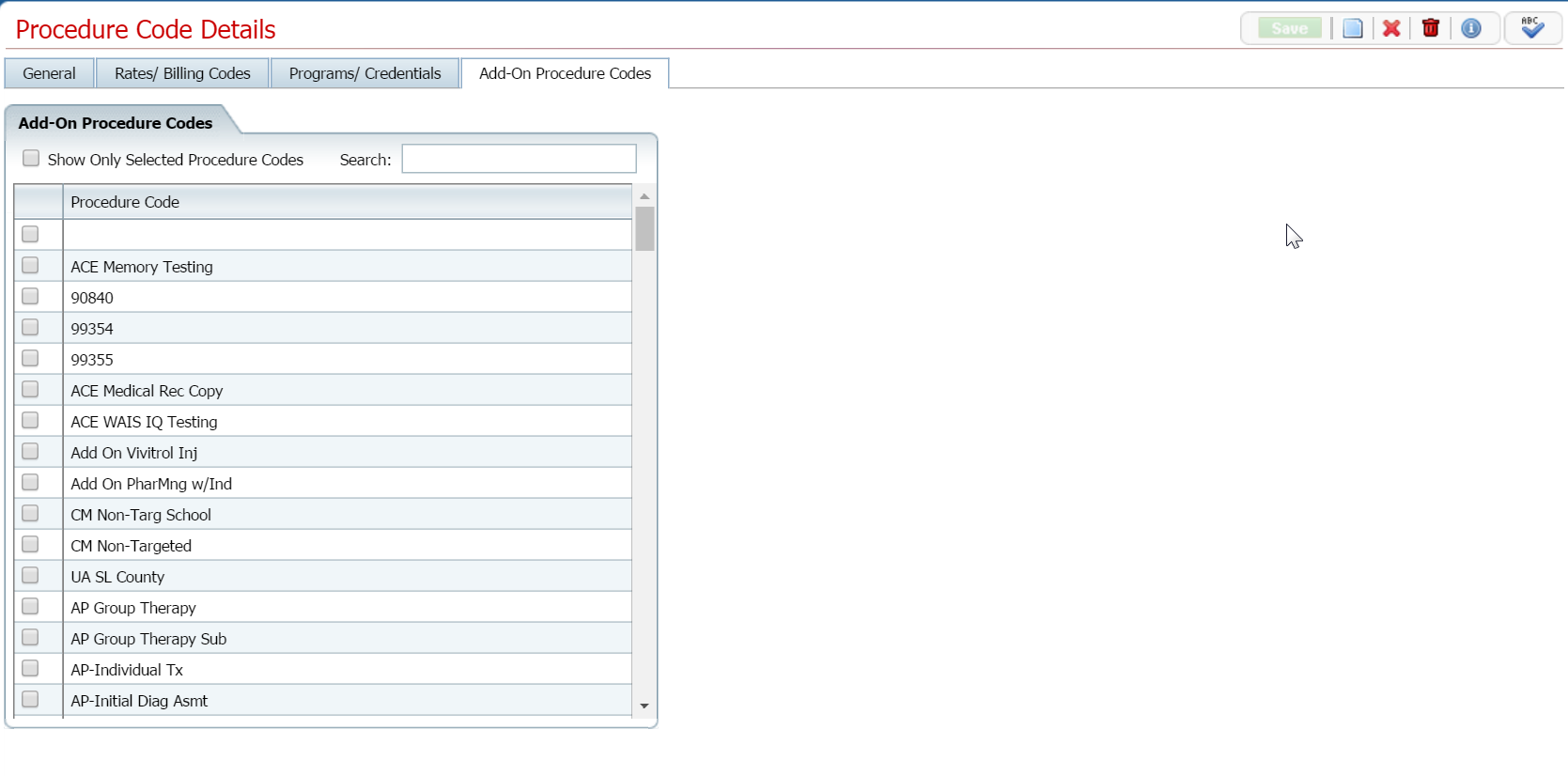
Click the Save button to save your work.
When all tabs are complete, click the Save button.
Click the Exit  icon to return to the Procedure/Rates
(###) list page.
icon to return to the Procedure/Rates
(###) list page.
Follow this path: Administration tab > Billing Setup banner > Procedure/Rates sub-banner.
The Procedure/Rates (###) list page is displayed. View field definitions.
Filter the list to determine the records that are displayed. Tell me how...
Click on the hyperlinked name in the Procedure column to display the Procedure Code Details page.
The Procedure Code Details page is displayed.
Makes changes to the General tab. View field definitions.
Click the Save button to save your work.
Make changes to the Rates/Billing Codes tab. View field definitions.
Click the Insert button to add the rates and billings codes to the Procedure and rate.
The Associate Billing Codes with Selected Plan(s) window is displayed. View field definitions.
Select the plan or plans that this procedure/rate applies to.
Click the Save button.
Click the Close button.
Click the Save button to save your work.
Make changes to the Programs/Credentials tab. View field definitions.
Click the Save button to save your work.
Make changes to the Add-On Procedure Codes tab. View field definitions.
When all tabs are complete, click the Save button.
Click the Exit
icon to return to the Procedure/Rates
(###) list page.
While you can delete a procedure code and rate, if the code and rate have been used for billing purposes and assigned to clients, deleting the code and rate can cause problems throughout the system. Rather than deleting the code and rate, deselect the Active option to make the plan inactive. By making the code and rate inactive, it can no longer be selected for a client's service.
If you have just added a code and rate and it has not been used in the system, you can delete them.
To Delete a Procedure and Rate
To Mark a Procedure and Rate Inactive
Follow this path: Administration tab > Billing Setup banner > Procedure/Rates sub-banner.
The Procedure/Rates (###) list page is displayed. View field definitions.
Filter the list to determine the records that are displayed. Tell me how...
Click on the hyperlinked name in the Procedure column to display the Procedure Code Details page for that code.
The Procedure Code Details page is displayed.
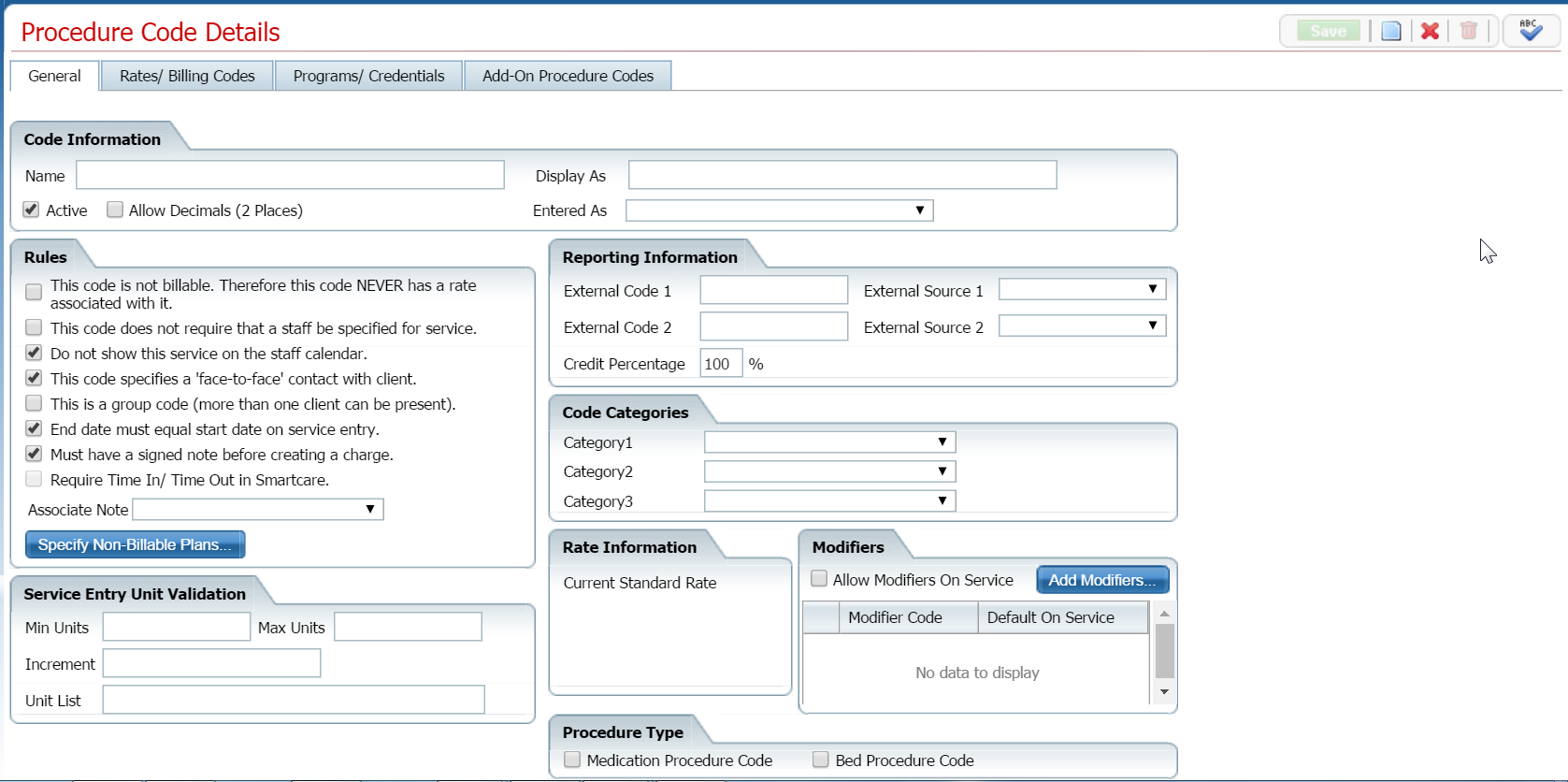
Click the trash can
icon  to delete the procedure code and rates.
The Procedure/Rates list page is displayed.
Follow this path: Administration tab > Billing Setup banner > Procedure/Rates sub-banner.
The Procedure/Rates (###) list page is displayed. View field definitions.
Filter the list to determine the records that are displayed. Tell me how...
Click on the hyperlinked name in the Procedure column to display the Procedure Code Details page for that code.
The Procedure Code Details page is displayed.
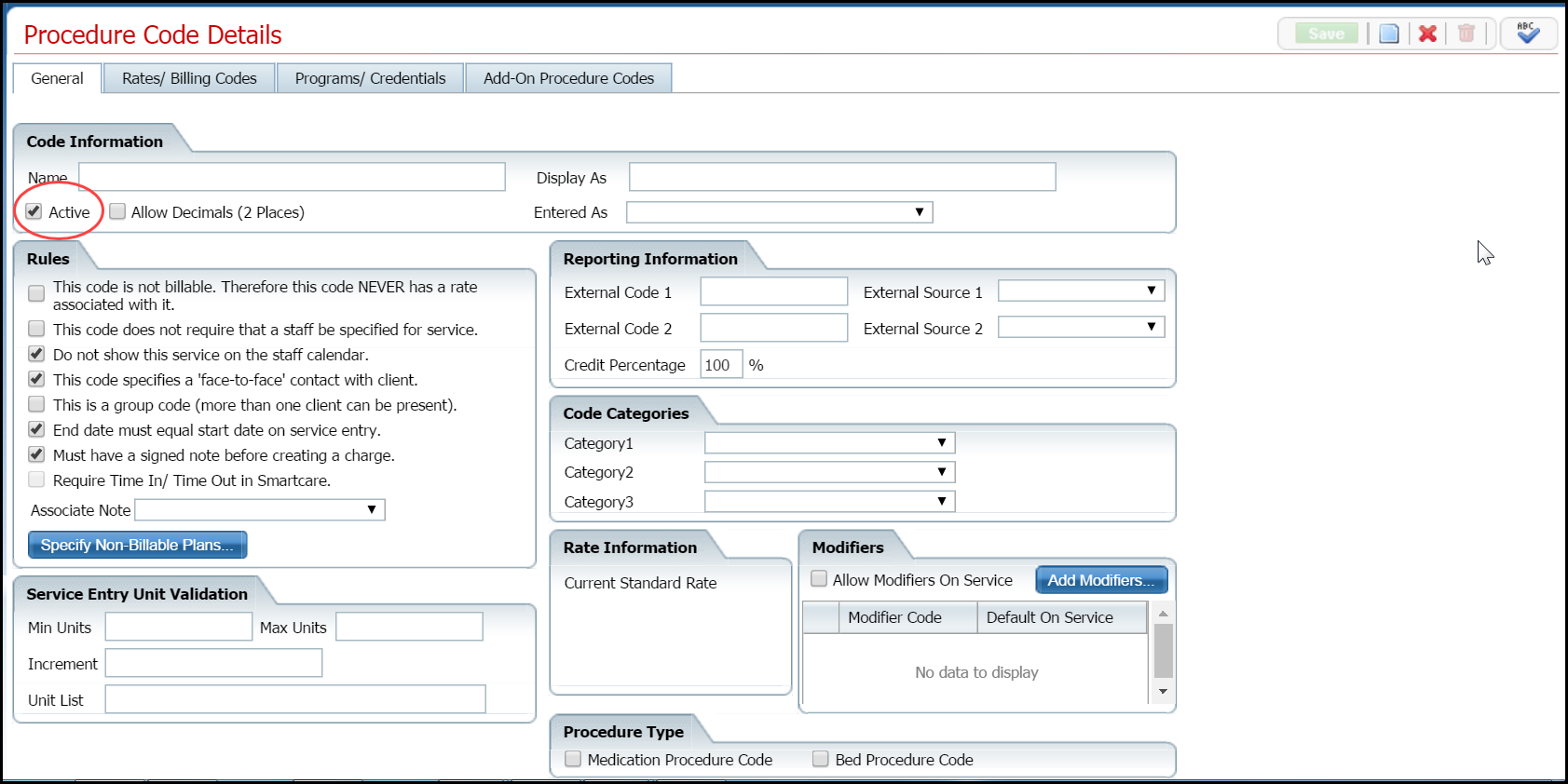
Deselect the Active check box to mark the procedure code and rates inactive. To find the Active check box, note the red circle in the image above.
Click the Save button on the toolbar.
Click the Exit  icon on the toolbar.
The Procedure/Rates list page is displayed.
Why can't I access these screens?