You assign a flag to a client to draw attention to or mark information about the client for other staff to see. After flags are assigned, you can manage the flags.
You can:
Assign a Flag to a Client from the Client Tab
Assign a Flag to a Client from the My Office Tab
De-activate a Flag on a Client
To assign a flag to a client, you:
Display the client you want to assign a flag to. Tell me how...
Follow this path: Client tab > Timeline/Flags/Events banner > Client Flag sub-banner.
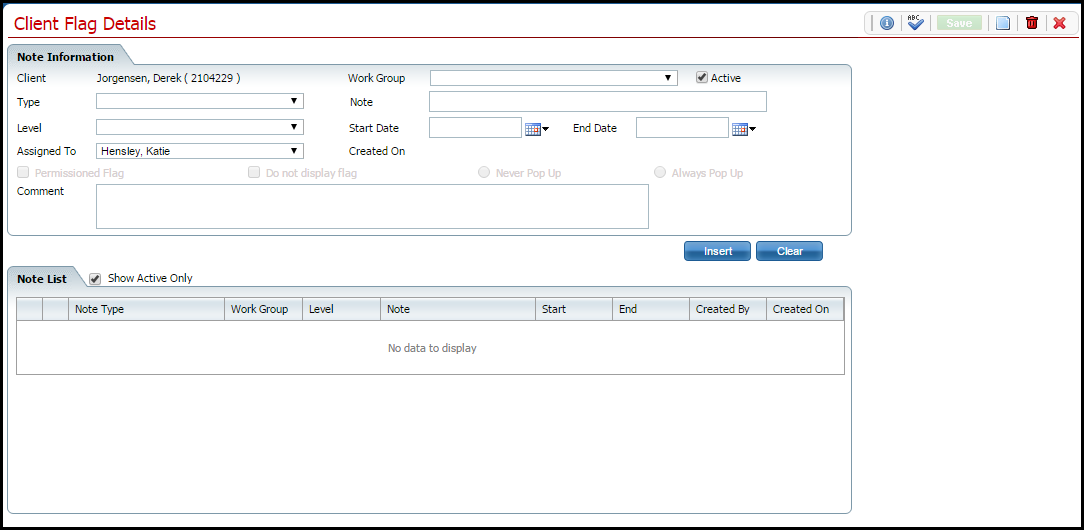
The Client Flag Details page is displayed. View field definitions.
Complete the Note Information section of the Client Flag Details page.
Click the Insert button.
Click the Save button in the tool bar.
Click the Exit  item in the tool bar.
The Client Flag Details page is closed and the Client Summary page is displayed.
You can also assign a flag to a client from the My Office tab.
To assign a flag to a client from the My Office tab:
Follow this path: My Office tab > Client Flags banner.
The Client Flags list page is displayed. View field definitions.
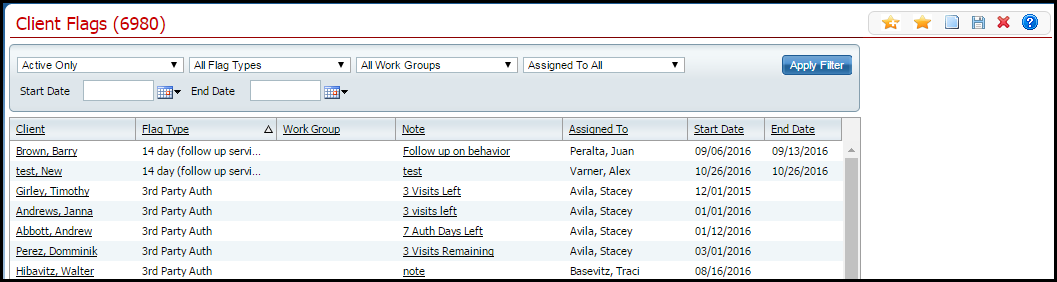
Click the New Item  icon in the tool bar.
If no client is displayed, the Search for Client window is displayed. Continue with step 3.
-or-
If a client is displayed, the Client Flag Details page is displayed. Continue with step 4.
Search for the client you want to assign a flag to. Tell me how...
The Client Flag Details page is displayed. View field definitions.
Complete the Note Information section of the Client Flag Details page.
Click the Insert button.
Click the Save button in the tool bar.
Click the Exit item in the tool bar.
The Client Flag Details page is closed and the Client Summary page is displayed.
Display the client whose flag you want to change.
From the Client tab, display the client you want to work on. Tell me how...
-or-
From the My Office tab, follow this path: Client Flags banner. Tell me how...
The Client Flag Details page is displayed. View field definitions.
Find the client whose flag you want to change.
From the Client tab, display the client you want to work on. Tell me how...
-or-
From the My Office tab, follow this path: Client Flags banner. Tell me how...
The Client Flag Details page is displayed. View field definitions.
Find the Flag Type in the Note List section of the page.
Click the delete  icon on the line of the flag you want to delete.
The Confirmation Message window is displayed.
Click the OK button in the Confirmation Message window.
The flag is deleted.
Click the Exit item in the tool bar to exit from the page.
Find the client whose flag you want to de-activate.
From the Client tab, display the client you want to work on. Tell me how...
-or-
From the My Office tab, follow this path: Client Flags banner. Tell me how...
The Client Flag Details page is displayed. View field definitions.
Click on the flag you want to de-activate in the Note List section of the page.
The flag information is displayed in the Note Information section of the page.
De-select the Active check box.
Click the Modify button to save your changes.
Why can't I access these screens?