Document Administering Medication
There are several ways to document administering a medication depending
on several conditions. Refer to the table below for information:
|
|
|
A blue check mark |
The check mark |
|
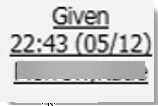
A status of "Given" |
The red and white capsule icon |
The status of Given,
date and time and user
sign on name are entered in the column.
|
A status other than "Given" |
The time in the header of the grid column
|
A window opens where you select the status
and note the date, time and dose defaults. You can modify the
times and doses, if needed. Tell
me how... |
Multiple medications |
The time in the header of the grid column
|
A window opens where you select the status
and note the date, time and dose defaults. You can modify the
times and doses, if needed. Tell
me how... |
Questions on the order for one medication |
The red and white capsule icon |
A window opens where you answer the questions.
Tell
me how... |
Questions on the order for multiple medications |
The time in the header of the grid column
|
A window opens where you answer the questions.
Tell
me how... |
Enter Status and
Date, Time and Dosage
Use this task if the status for the medication is other than "Given"
or if there are multiple medications to be administered.
To Enter Status and Date, Time and Dosage
Display the client whose MAR you want to view. Tell
me how...
Follow this path: Client tab
> Medications banner > Client MAR sub-banner.
The Client MAR
page is displayed. View
field definitions.
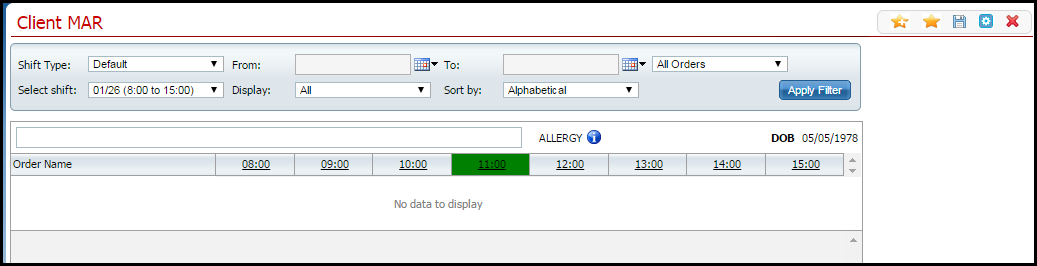
Set the fields in the
filter portion of the page to display the records you want to view.
Tell me how...
Click the Apply Filter
button.
The medication information is displayed in the lower
half of the page. View field
definitions.
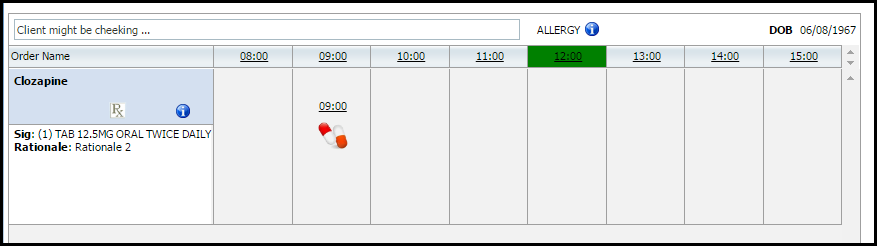
Click on the time in
the column header of the medication you want to document. In this
example, click on the 09:00 heading.
New fields are displayed in the time grid. View
field definitions.
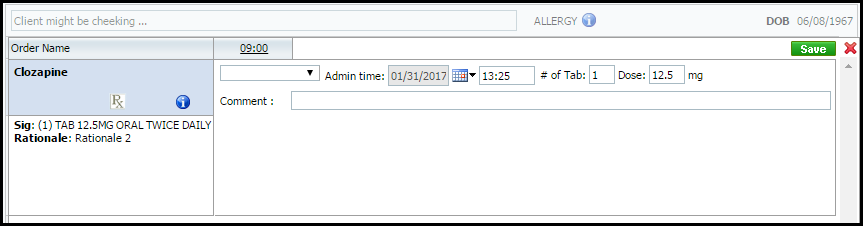
Complete the fields
in the right-hand column.
Click the Save button.
Click the Exit  icon
to return to the time grid.
icon
to return to the time grid.
Document
Administration of Medication for an Order with Questions
Use this task to document one medication. If there are multiple medications
for the time period, refer to Document
Administration of Multiple Medication for an Order with Questions.
Display the client whose MAR you want to view. Tell
me how...
Follow this path: Client tab
> Medications banner > Client MAR sub-banner.
The Client MAR
page is displayed. View
field definitions.
Set the fields in the
filter portion of the page to display the records you want to view.
Tell me how...
Click the Apply Filter
button.
The medication information is displayed in the lower
half of the page. View field
definitions.
Click on the red and white
capsules of the medication you want to document.
The MAR Details
window is displayed. View field
definitions.
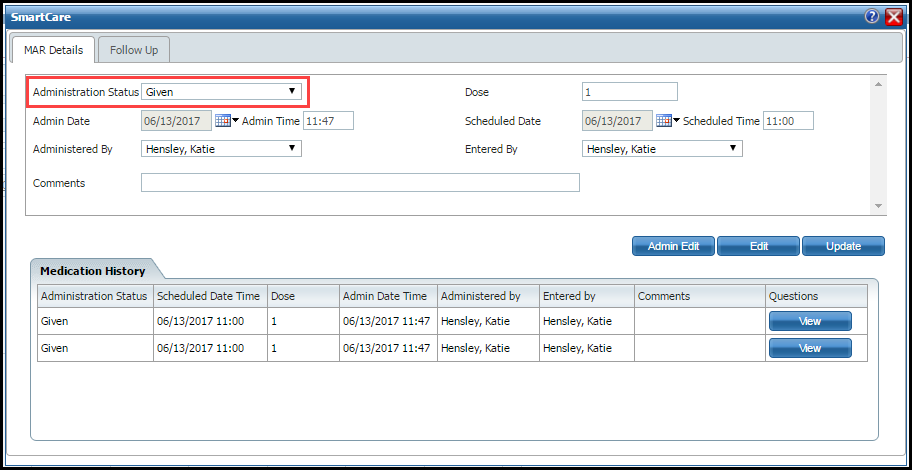
Select Administration Status
in the drop down list in the MAR
Details section.
Complete the fields
in the Additional Questions
section, if displayed.
Click the Save button.
Click the Exit
icon to return to the time grid.
Document
Administration of Multiple Medication for an Order with Questions
Use this task to document multiple medications. If there is a single
medication for the time period, refer to Document
Administration of Medication for an Order with Questions.
Display the client whose MAR you want to view. Tell
me how...
Follow this path: Client tab
> Medications banner > Client MAR sub-banner.
The Client MAR
page is displayed. View
field definitions.
Set the fields in the
filter portion of the page to display the records you want to view.
Tell me how...
Click the Apply Filter
button.
The medication information is displayed in the lower
half of the page. View field
definitions.
Click on the time in
the header of the column of
the medication you want to document.
Different fields are displayed in the right-hand column
of the medication row. These fields appear for each medication in the
time frame. View
field definitions.
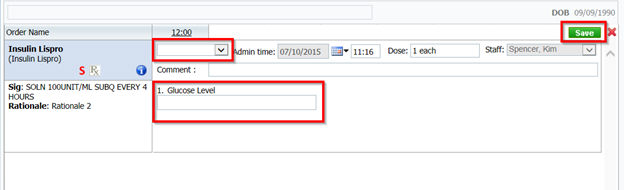
Select Administration Status
in the drop down list.
Complete the field(s)
in the section below the Comment
field. Refer to the Glucose Level
field in the figure above.
Click the Save button.
Click the Exit
icon to return to the time grid.
Why
can't I access these screens?