Use this task to scan a plan contract into the client's account. From the Scanned Medical Record Detail page, you can:
Scan a document, such as a plan contract
Place the contract on the scanner.
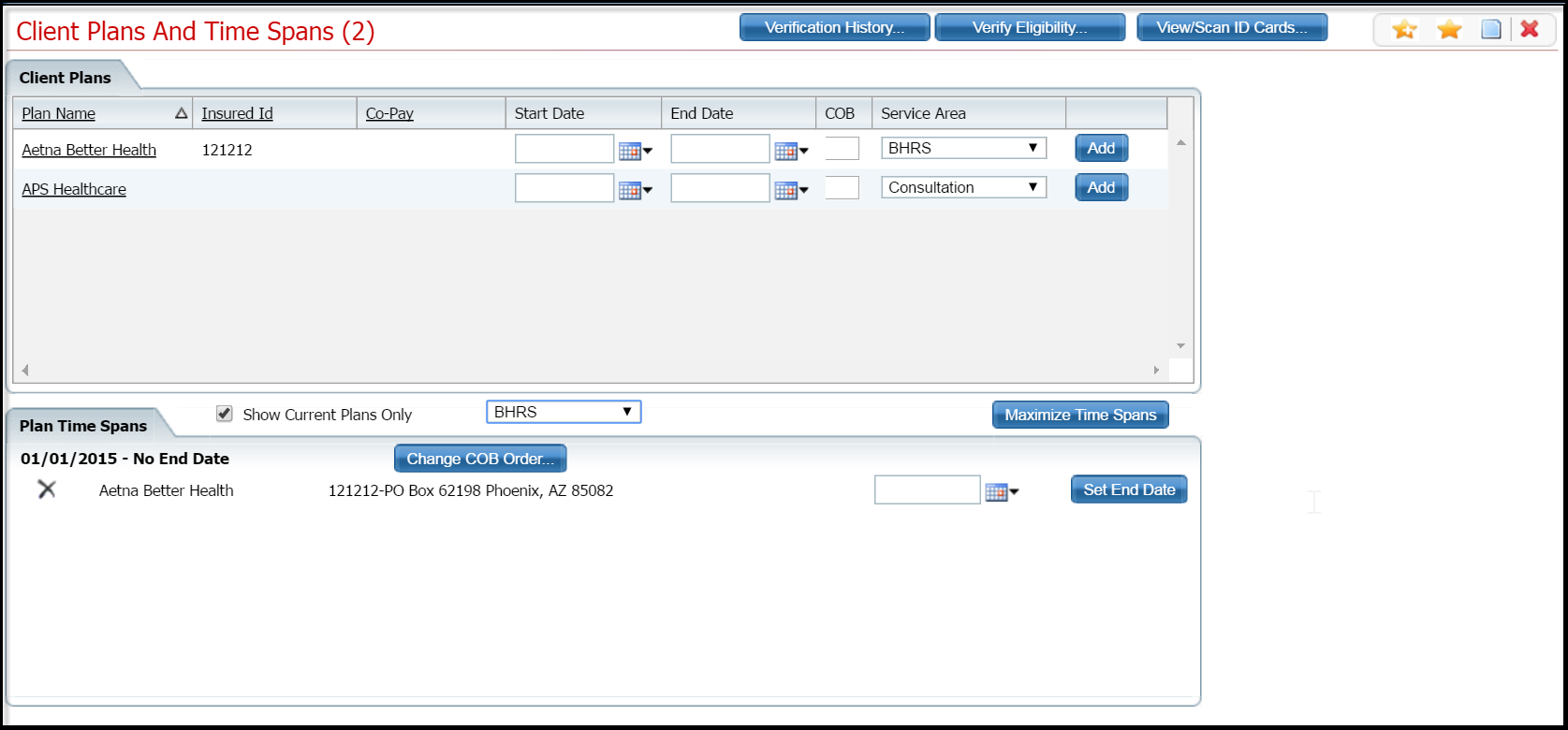
Display the Client Plans and Time Spans (##) list page. Tell me how... View field definitions.
Click the hyperlinked plan name in the Plan Name column whose contract you want to scan.
The Client Plans page is displayed with the General tab active. View field definitions.
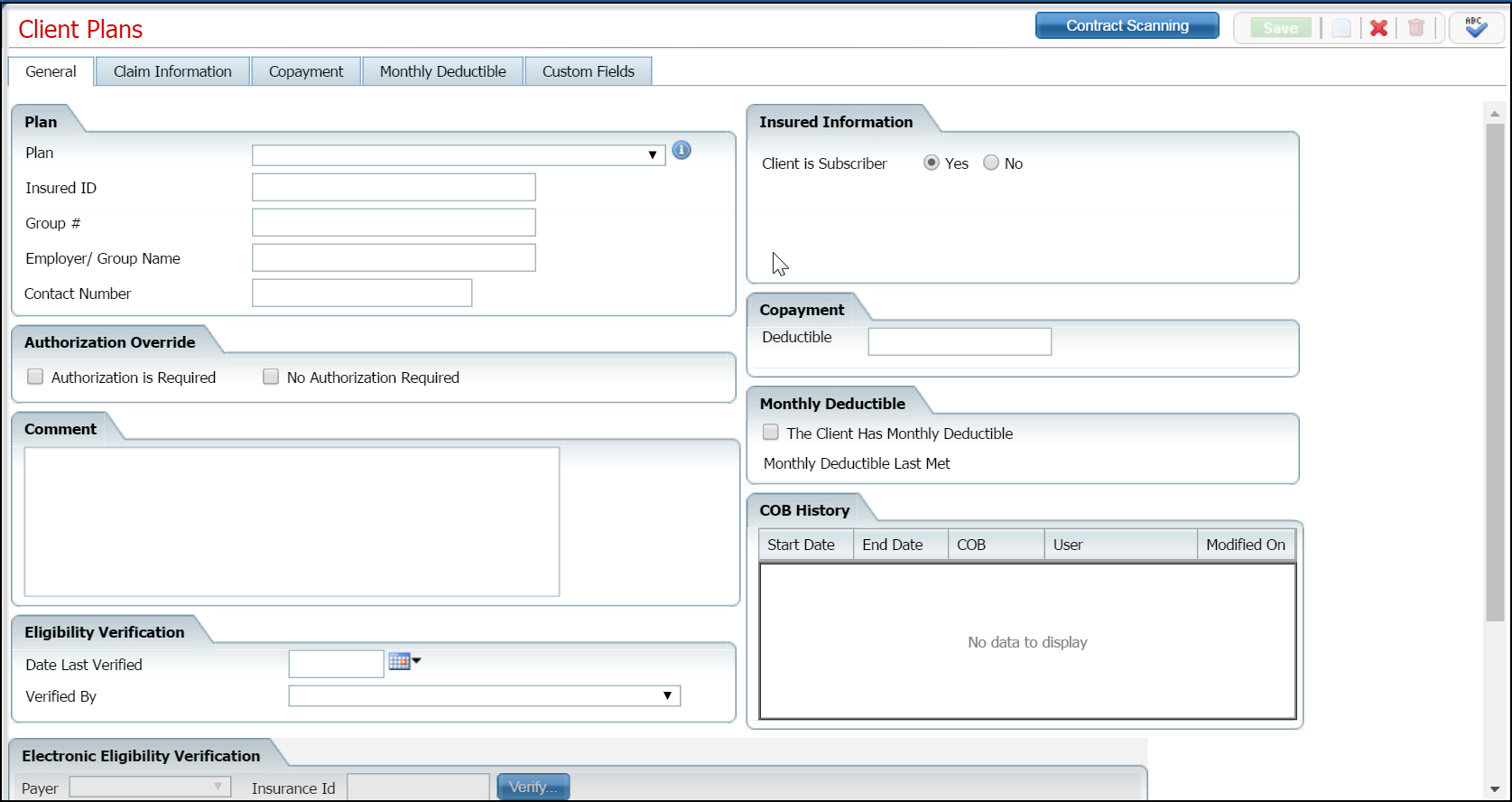
Click the Contract Scanning
 button in the tool
bar.
button in the tool
bar.
The Contract Scanning <clients name> (#) page is displayed. View field definitions.
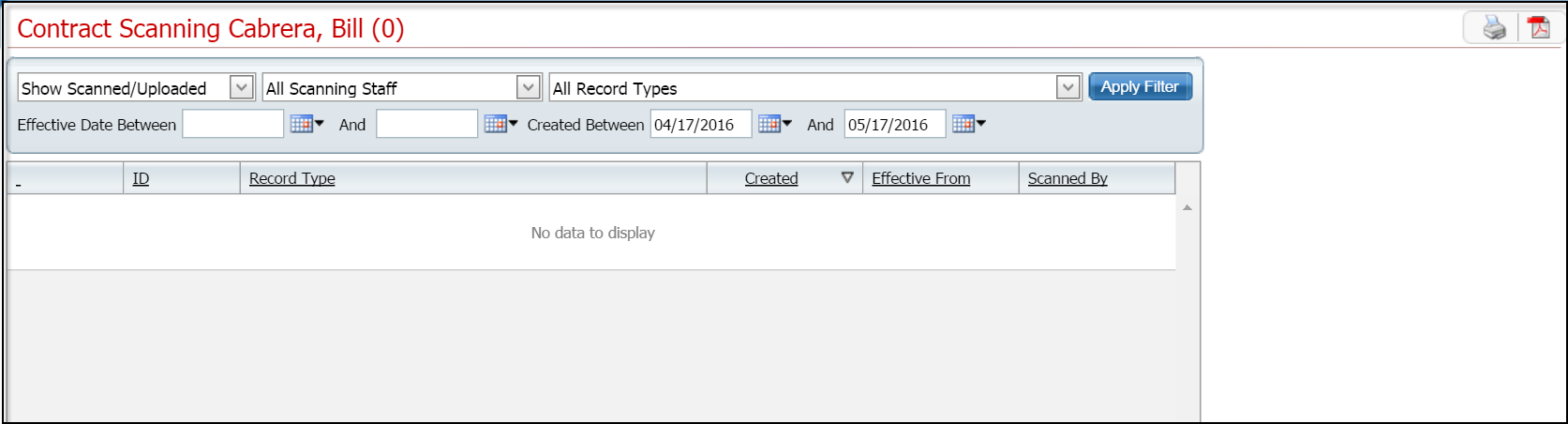
Click the Scan New Images  toolbar item to scan the plan contract.
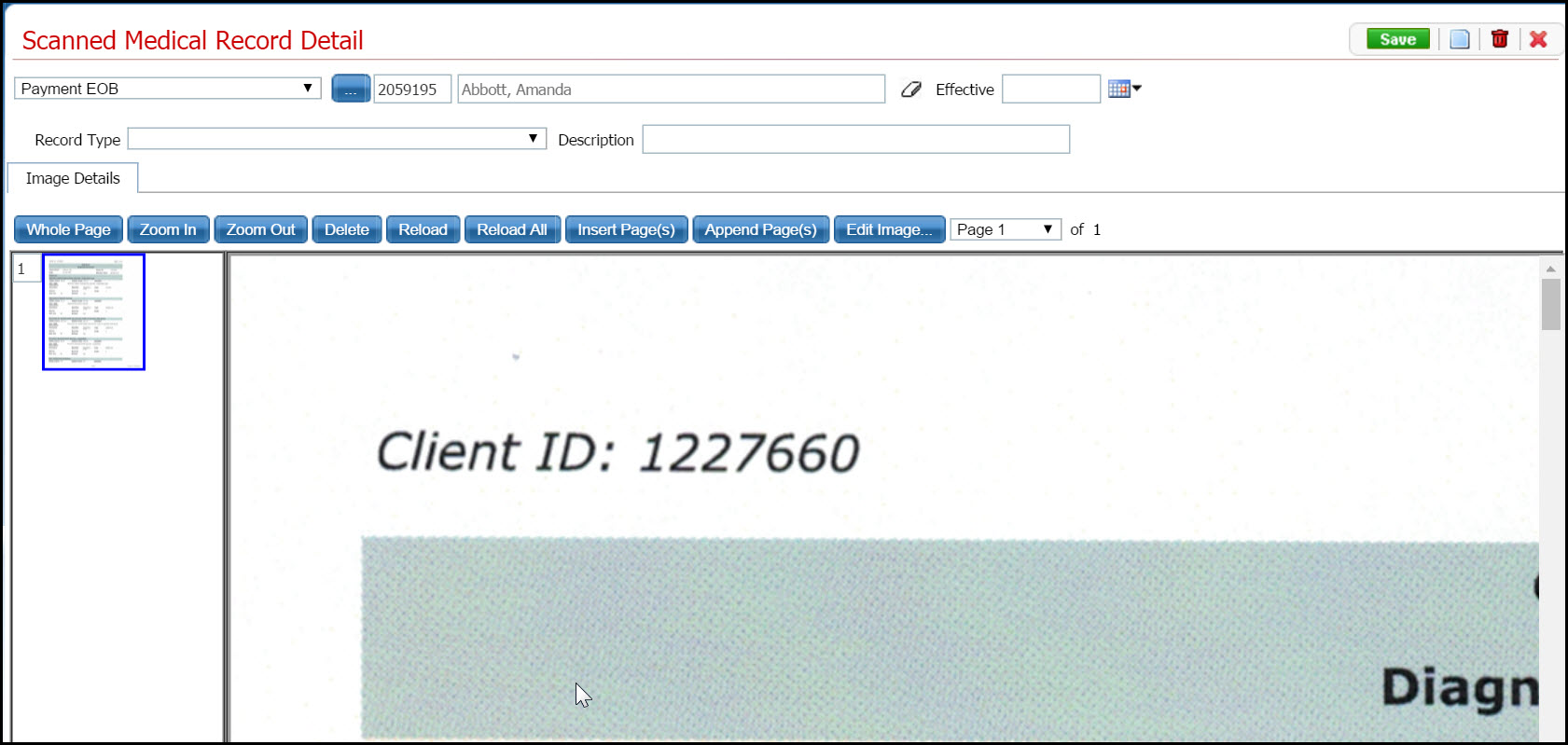
The Scanned Medical Record Detail page is displayed. View field definitions.
If needed, select the scanner to use.
Click the Start button.
The item is scanned and displayed in the Scanned Medical Record Detail page. View field definitions.
Complete the fields in the top portion of the screen to identify the document in the system and on the client's account.
Work with the scanned document, if needed.
Click the Save button in the toolbar.
Click the Exit  toolbar item to exit from the page.
Follow this path: Client tab > Finance banner > Insurance sub-banner.
The Client Plans And Time Spans list page is displayed. View field definitions.
Click on the hyperlinked name in the Plan Name column of the plan whose contract document you want to delete.
The Client Plans page is displayed. View field definitions.
Click the Contract Scanning
button.
The Contract Scanning <client name> list page is displayed. View field definitions.
Click the Apply Filter button to display any scanned documents for the client.
Click the hyperlinked date in the Created column.
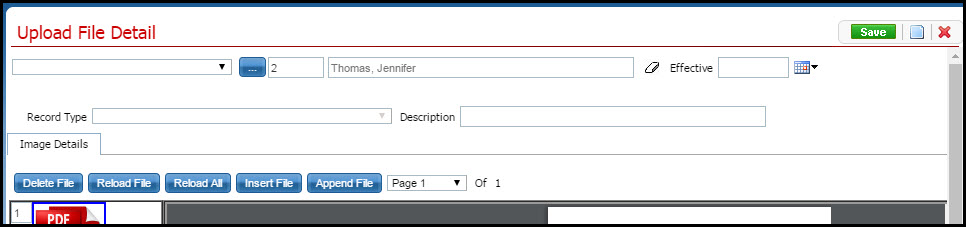
The Upload File Detail page is displayed. View field definitions.
Click the trash can  toolbar item to delete the document.
A Confirmation Message window is displayed.
Click the Yes button in the Confirmation Message window.
The document is deleted and the Dashboard is displayed.
Why can't I access these screens?