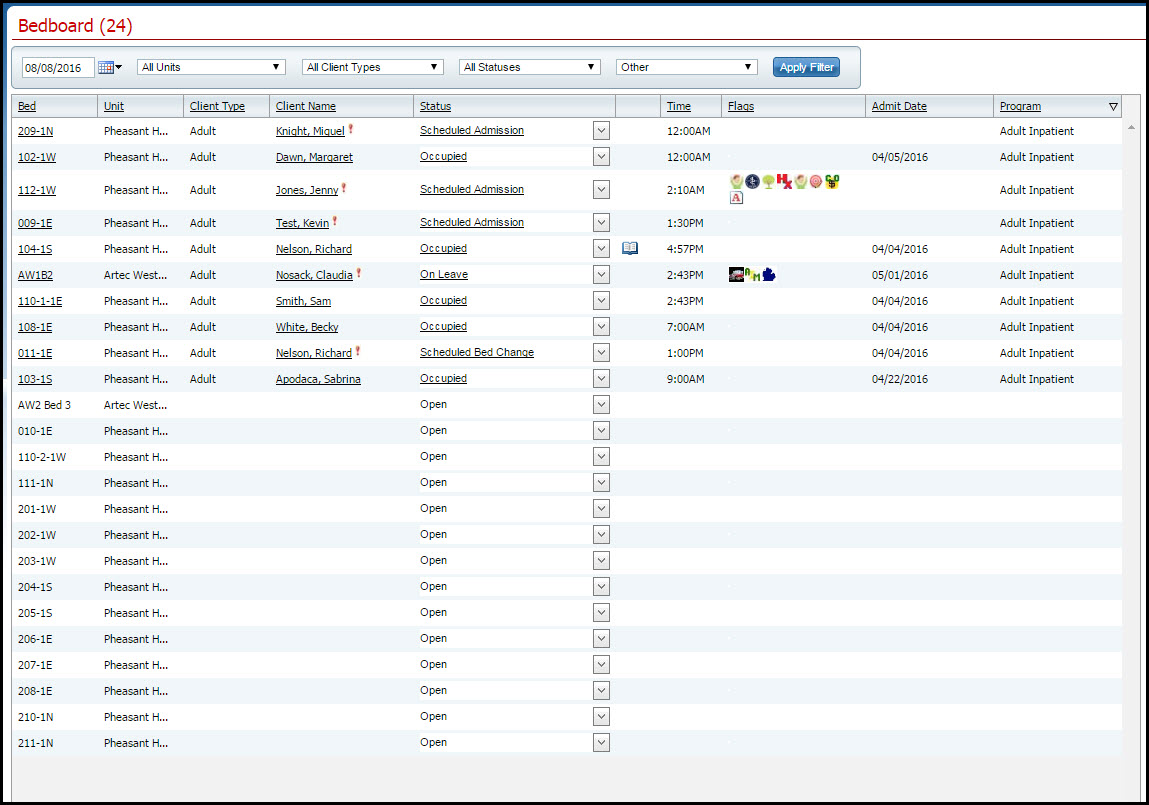
Swap Beds is an action that lets you move two clients to each other's beds, hence the name, swap beds. You can perform these tasks to swap beds:
You need to know the clients' names and bed IDs to complete any of these procedures. Both clients must have a Status of Occupied.
Follow this path: My Office tab > Inpatient/Residential banner > Bedboard sub-banner.
The Bedboard (###) List Page is displayed.
Filter the list to determine the records that are displayed. Tell me how...
Find one of the clients and bed who wants to swap beds. Tell me how...
Tip: Click on the hyperlinked heading in the Client Name column to arrange the clients in alphabetical order.
Click the drop down arrow in the Status column for the client who is swapping a bed and select Swap Beds.
The Swap Beds window is displayed. The Bed1 section displays the client's information you selected on the Bedboard list page. View field definitions.
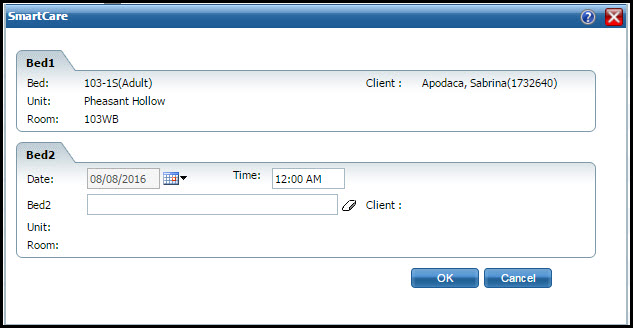
Complete the Bed2 section with the information on the second client who wants to swap beds. View field definitions.
Click the OK button to save the changes.
The Bedboard list page is displayed with the original client's occupied bed listed with a status of Bed Changed and a second listing with the second client shown in that bed with a status of Occupied.
The most accurate way to change swapped beds is to re-swap the beds back to the original occupancies. This ensures that the bed occupancy remains accurate.
Display the Bedboard list page. Tell me how... View field definitions.
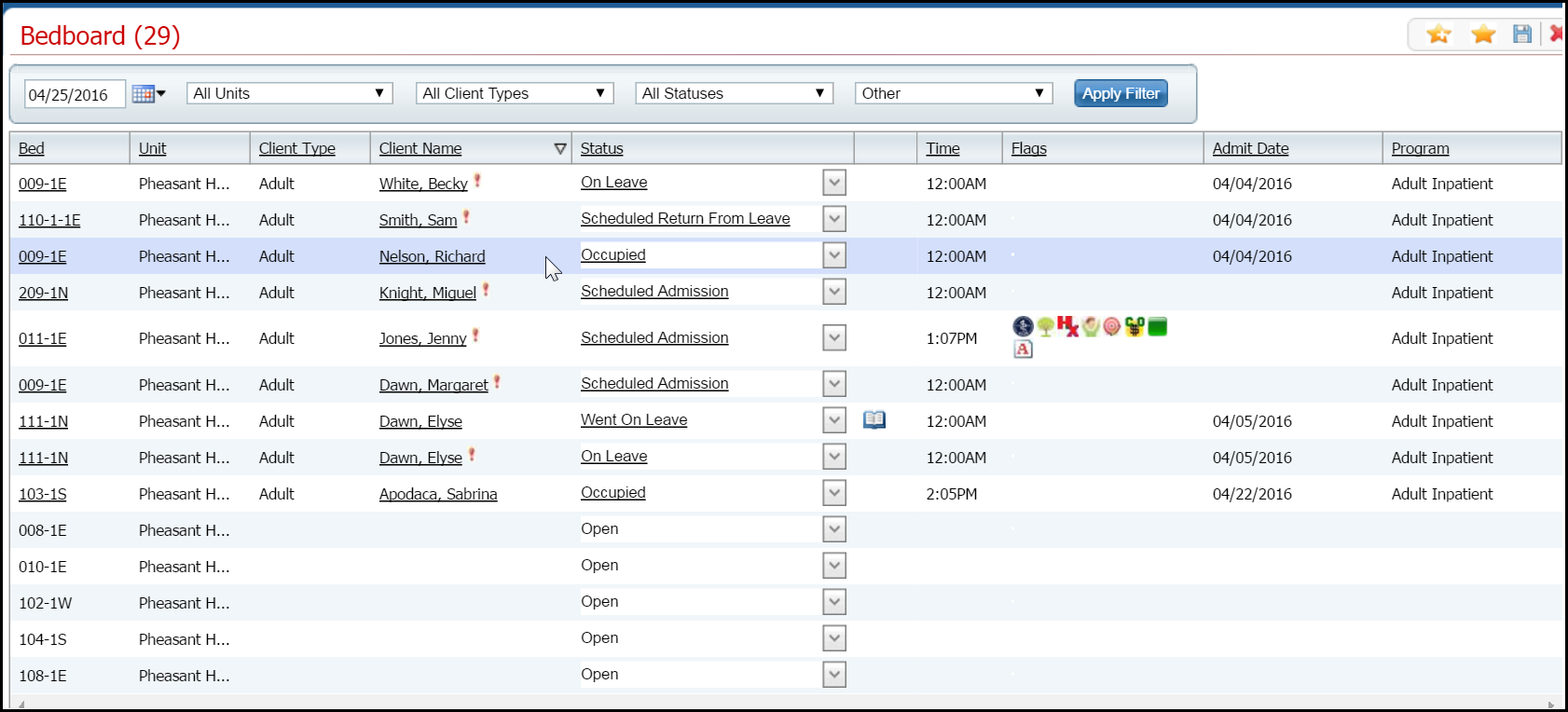
Find the client and bed you want to re-swap beds. Tell me how...
Tip: Click on the hyperlinked heading in the Client Name column to arrange the clients in alphabetical order.
Click the drop down arrow in the Status column for the client who is swapping a bed and select Swap Bed.
The Swap Bed window is displayed. The Bed1 section displays the client you selected on the Bedboard list page.
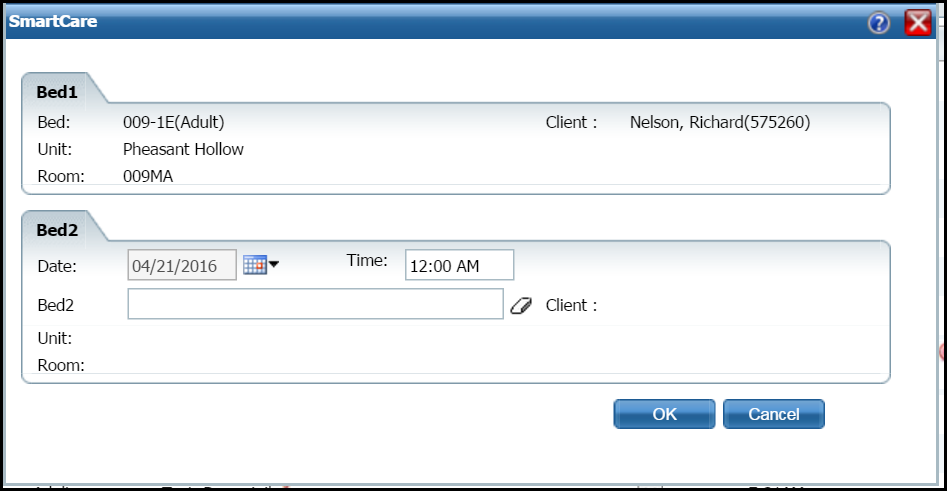
Complete the Bed2 section with the information on the second client who wants to swap beds. View field definitions..
The most accurate way to undo swapped beds is to re-swap the beds back to the original occupancies. This ensures that the bed occupancy remains accurate.
Display the Bedboard list page. Tell me how... View field definitions.
Find the client and bed you want to re-swap bed. Tell me how...
Click the drop down arrow in the Status column for the client who is swapping a bed and select Swap Bed.
The Swap Bed window is displayed. The Bed1 section displays the client you selected on the Bedboard list page.
Complete the Bed2 section with the information on the second client who wants to swap beds. View field definitions.
Click the OK button to save the changes.
The Bedboard list page is displayed with the original client's occupied bed listed with a status of Bed Changed and a second listing with the second client shown in that bed with a status of Occupied.
The most accurate way to delete swapped beds is to use the Undo Swapped Beds task to swap the beds back to the original occupancies. This ensures that the bed occupancies remain accurate.
Why can't I access these screens?